Author: cschaaf933

  • Navigating the Flow: The Art of Crafting User Flowcharts

    Navigating the Flow: The Art of Crafting User Flowcharts

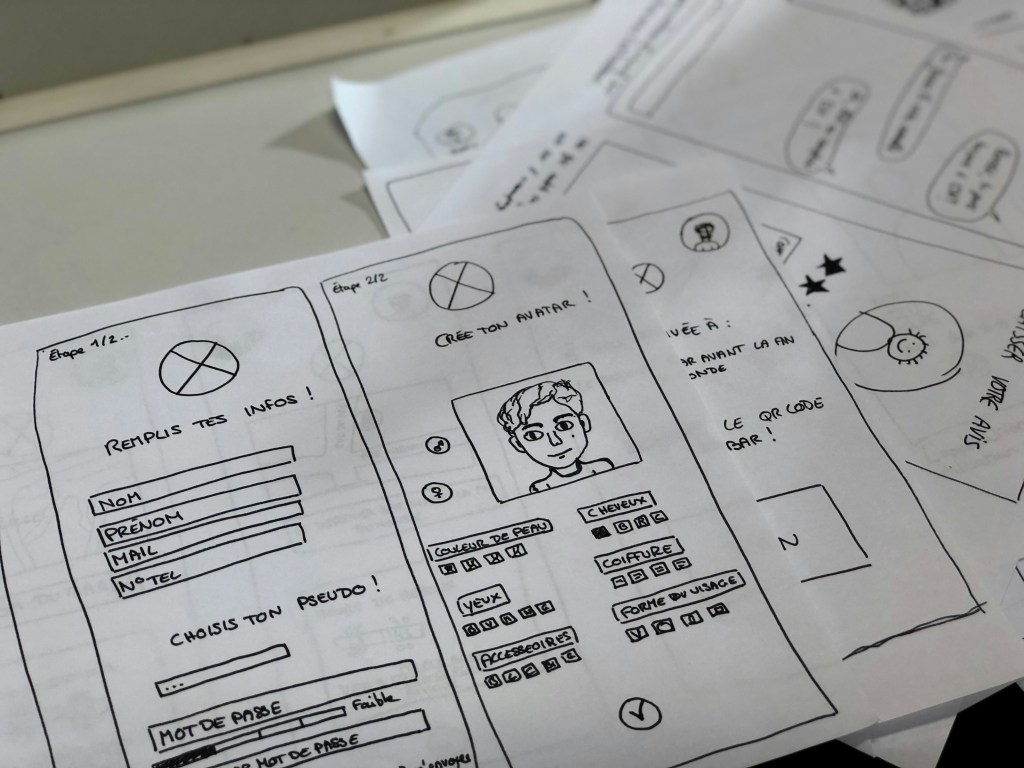
    An example of a visual roadmap from Kelly Sikkema on unsplash.com.

    Have you ever opened an app with a specific goal in mind, only to find yourself lost in a maze of menus and options? Imagine needing to quickly pay a bill through your bank’s mobile app. You expect a straightforward process, but instead, you’re met with unclear labels, hidden menus, and redundant steps. Frustrated, you either spend more time than anticipated or abandon the task altogether. Such experiences are not uncommon and highlight the critical importance of intuitive design in digital products.​

    These moments of frustration underscore the significance of user flowcharts in the design process. By thoughtfully designing these flows, we can create seamless experiences that guide users effortlessly toward their goals.

    What Is a User Flowchart?

    An example of a user flowchart from uxdesign.com.

    A user flowchart is a diagram that illustrates the path a user follows to accomplish a specific task within a system. It outlines each step and decision point, providing a clear picture of the user’s journey. This tool is invaluable for designers aiming to create intuitive and efficient user experiences.

    Steps to Create an Effective User Flowchart

    Drawing inspiration from Camren Browne’s “How to Create a User Flow: A Step-by-Step Guide,” these are key steps to consider when creating a user flowchart:

    Understand Your User

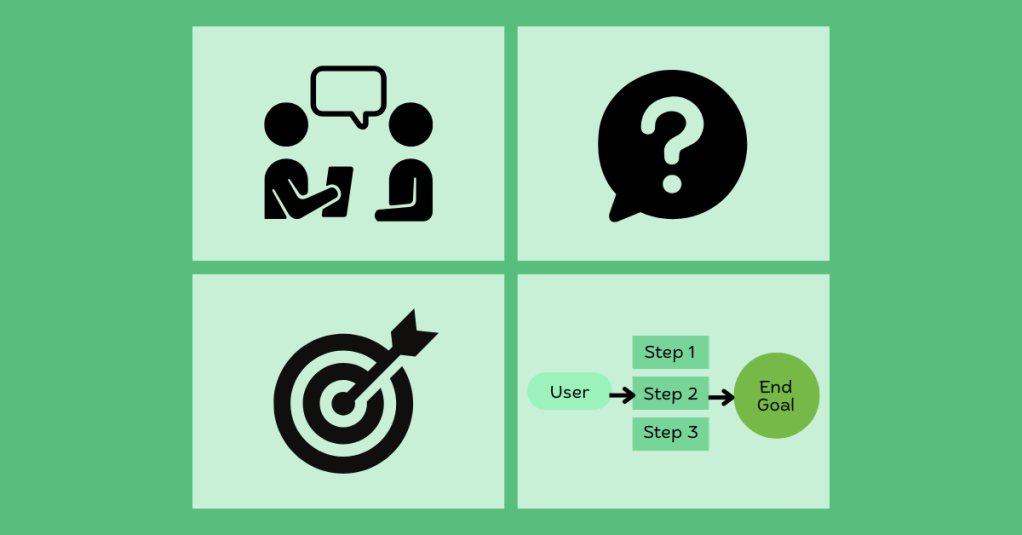
    To design an effective user flow, you must first deeply understand your users. Ask questions like:

    • What are the users’ needs and goals?
    • What challenges do they face?
    • Which features are most important to them?
    • What initial questions will they have about the product?
    • What is the most important information that you can provide so the user can easily interact with your product?

    By answering these questions, you can identify key pathways that guide the user through your site or app in the most direct manner. Pinpointing these pathways will create user flow seamlessly.

    Outline the User Flow

    Browne suggests breaking the flowchart into three main stages:

    • Entry Point: An entry point is where the user accesses the product initially. Websites often have multiple entry points while apps usually have limited entry points.
    • Steps to Completion: Steps to completion encompasses a majority of the flow chart. These steps include login or signup screens, a home screen, and any other screen that the user passes through to complete their intended task. The goal is to keep it simple (Browne, 2022). It is important to only outline the steps needed for the user to achieve their goal.
    • Final Step: This step signifies the completion of the user’s task.​

    Keeping this structure simple ensures clarity and ease of navigation.​

    Define Flowchart Elements

    When creating flowcharts, designers should use different shapes and colors to represent various interface elements (Browne, 2022). Each shape illustrates an interaction and provides the reader with more information about what each step entails. Some of the most common shapes include:

    • Rectangles: Rectangles usually represent a page or display screen.
    • Circles: Circles are usually used for displaying an action.
    • Diamonds: Coined as a “decision diamond,” this shape asks a question where the user needs to make a decision.
    • Arrows: Lines with arrows indicate the direction of the user’s journey.

    Refine the Outline

    The strategy for designing an interface is similar to designing a UX flowchart. Browne (2022) suggests to make labels meaningful. Labels will accurately and efficiently describe exactly what the user is doing in each step of the user flow. Other tips include avoiding the use of capital letters to maintain readability and to carefully select colors for each step of the user flowchart. Color should be used as a coding system rather than for styling. Including a key or legend helps in understanding the symbols used in a user flowchart (Browne, 2022).​

    Applying User Flowcharts: A Practical Example

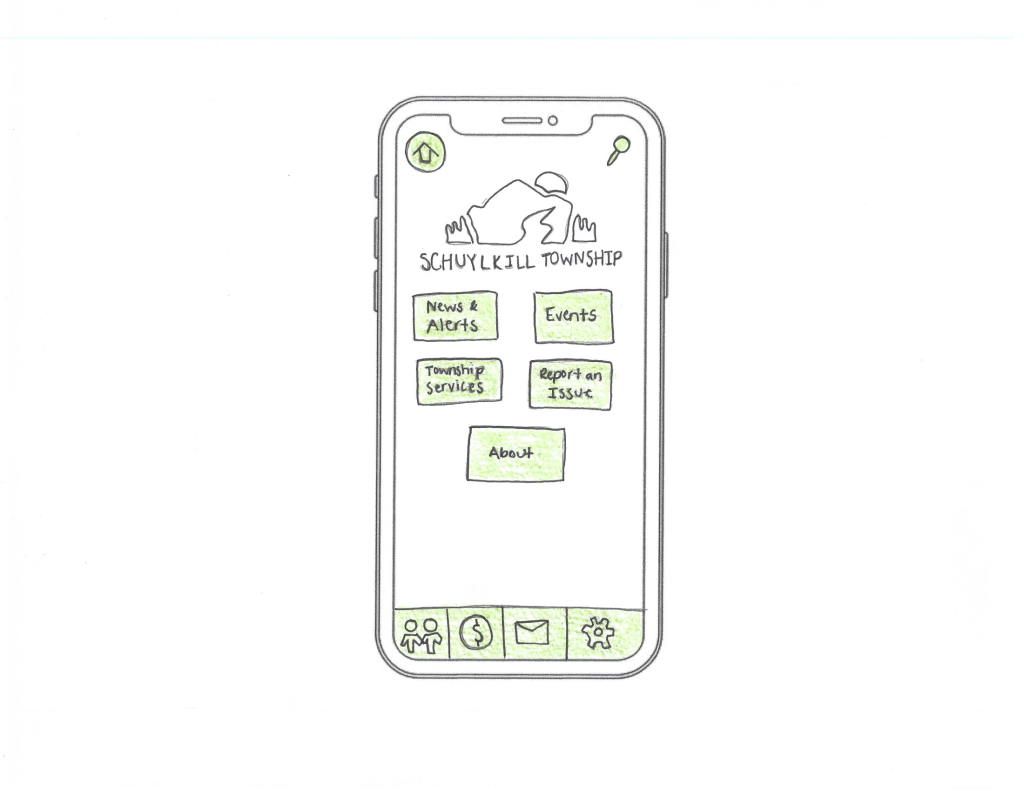
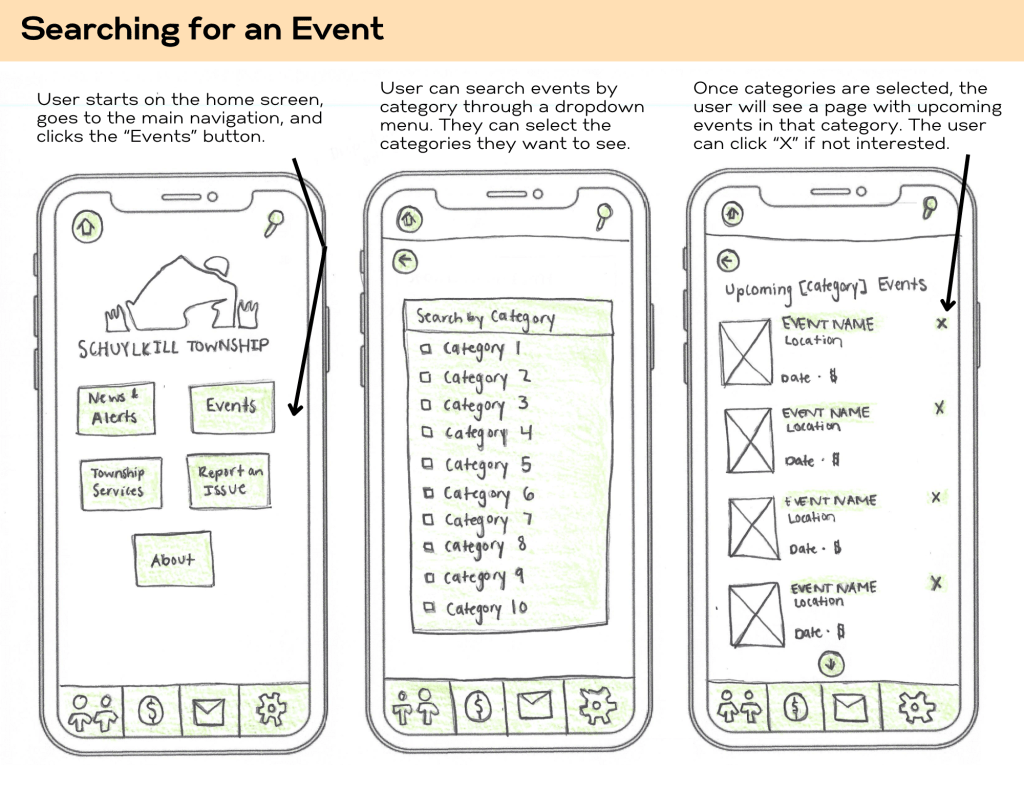
    Recently, I worked on developing a companion app for Schuylkill Township’s website, aiming to centralize township information and services. After creating a site map for the website and companion app, I further explored the companion app, identifying the purpose, functions, target audience, and designing the app’s user flowcharts.

    Schuylkill Hub Overview

    The Schuylkill Township Logo

    Purpose

    The purpose of the Schuylkill Hub companion app is to provide residents with easy access to township news, events, and services, fostering community engagement.​ The goal is to create a space where the Schuylkill Township community can connect and find easily accessible information on the go.

    Functions

    The functions of the Schuylkill Hub app include:

    • Make online payments​.
    • View the township’s most recent and past news stories​.
    • Check and RSVP to upcoming events​.
    • Request township services​.
    • Report issues​.
    • Access a directory of township contacts.​
    • Connect with other residents via social media.​

    Target Audience

    The target audience for this app is residents of Schuylkill Township, particularly those frequently visiting the township’s website. This app will offer them easy access to important township-related information.​ The demographic data of Schuylkill Township residents are as follows as outlined by the Census Reporter:

    • About 8,800 residents.
    • The median age is 42, with the most populated age groups of 50-59 (19%) and 10-19 (17%).
    • 51% Female and 49% Male.
    • 90% White.

    This app will meet the needs of its users because Schuylkill Township residents will be more informed about township events, feel more connected with their community and township leadership, access township-related information in an easily accessible and user-friendly way, make payments efficiently, and receive help when needed.

    User Example Scenarios

    Using the demographic information above, I crafted four user scenarios of potential Schuylkill Township residents that could use this app for different purposes.

    To view all four scenarios with their respective user flowcharts, click here. Below is an example of one user scenario.

    Emma’s Story and Scenario

    An image of a student in a library from unsplash.com.

    User Story

    As a high school AP Government student in Schuylkill Township, I am about to vote in my first election and want to find local political events to get involved in. I also want to contact local elected officials.

    User Scenario

    Emma, 18, is a high school senior who recently enrolled in AP Government and Politics. This class has piqued her interest in politics, and she wants to learn more and become involved in her local political landscape. Yearning to gain knowledge before participating in her first election, she wants to get information about Schuylkill Township’s upcoming political events and also reach out to elected officials to establish connections. She wants to make a positive impact in her community.

    Use Cases

    Option 1

    1. Emma opens the Schuylkill Hub app.​
    2. The welcome screen displays options like “Events” and “Directory.”​
    3. She selects “Directory.”​
    4. The Directory Tab appears with options.
    5. Within the directory, she chooses “Elected Officials.”​
    6. Emma browses the list and finds contact information.​
    7. She uses the provided details to reach out to an official.​
    8. Satisfied, Emma closes the app.​

    Option 2

    1. Emma opens the Schuylkill Hub app.​
    2. The welcome screen displays options like “Events” and “Directory.”​
    3. Emma selects the “Events” tab from the welcome screen.​
    4. She filters events by category and chooses “Politics.”​
    5. Emma browses upcoming political events.​
    6. She selects an event.
    7. She views the event details.
    8. She registers for an event of interest.​
    9. Emma closes the app, having achieved her goal.​

    Option 3

    1. Emma opens the Schuylkill Hub app.​
    2. The welcome screen displays options.​
    3. Emma selects the “Events” tab.
    4. She does not filter events and looks through the events calendar manually.
    5. Emma clicks through monthly events.
    6. She selects an event.
    7. She views the event details.
    8. She registers for an event of interest.​
    9. Emma closes the app, achieving her goal.​

    This structured approach ensures that Emma’s experience is straightforward and aligns with her objectives.​

    User Flowchart

    The above flowchart depicts Emma’s journey to achieving her desired goals of attending upcoming political events and contacting local elected officials. Following Browne’s suggestions, I used these elements throughout my flowchart.

    • Rounded Rectangle: Start / End
    • Rectangle: Page
    • Circle: Action
    • Diamond: Decision
    • Dotted line with arrow to show direction.

    Final Thoughts

    Creating user flowcharts is more than just plotting paths on a diagram; it’s about stepping into the user’s shoes and understanding their journey. By focusing on the user’s perspective, designers can craft experiences that are not only functional but also engaging and intuitive.​

    Reflecting on this process, I realized the importance of empathy in design. When we prioritize the user’s needs and anticipate their actions, we create pathways that feel natural and effortless. This not only enhances user satisfaction but also fosters trust and loyalty.​ Designing with clear user flows ensures that our digital products offer meaningful and seamless experiences.

  • Designing a Companion App: Putting User Experience First

    Designing a Companion App: Putting User Experience First

    Background Image of Pickering Valley Golf Course

    How many apps do you use per day? Now, think about the ones you use most often. Why do you keep coming back to them? Chances are, they’re intuitive, easy to navigate, and provide the information you need without frustration. On the flip side, if an app is cluttered, confusing, or just plain frustrating, you probably close it and move on.

    Designing an app isn’t just about making something look good – it’s about creating a user-centric experience where every feature and piece of content is carefully chosen. That was my challenge this week: designing a companion app for the Schuylkill Township website that balances functionality, accessibility, and ease of use.

    Choosing the Right Content for an App

    Not all website content needs to be included in an app. In fact, trying to squeeze too much information into an app can backfire, making navigation overwhelming. So, I started by asking myself two key questions:

    1. Should all website content be available on the app?
      No. Overloading an app with too much content can create clutter and unnecessary complexity.
    2. What information would be most useful to users?
      As I researched municipal apps and user behavior, I found that residents primarily use these apps to stay informed and access services quickly. The most sought-after features include news and alerts, event updates, service requests, and contact information (civiclive.com; civicplus.com; townweb.com). My goal was to strike a balance between offering essential information and keeping navigation streamlined.

    Key Features of the Companion App

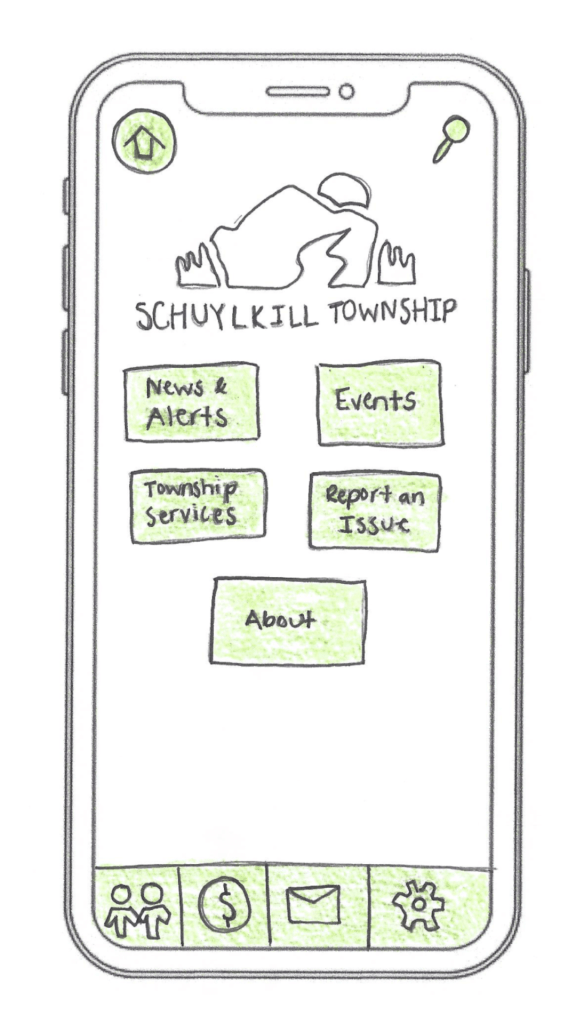
    After considering these factors, I structured the app around a home screen and five main sections, each designed to improve user experience and efficiency:

    1. Home Screen

    The home screen serves as the app’s hub, featuring:

    • A header with the township logo, search bar, settings for language preferences, and a ‘Make a Payment’ button.
    • A background image of the township for a welcoming, familiar touch.

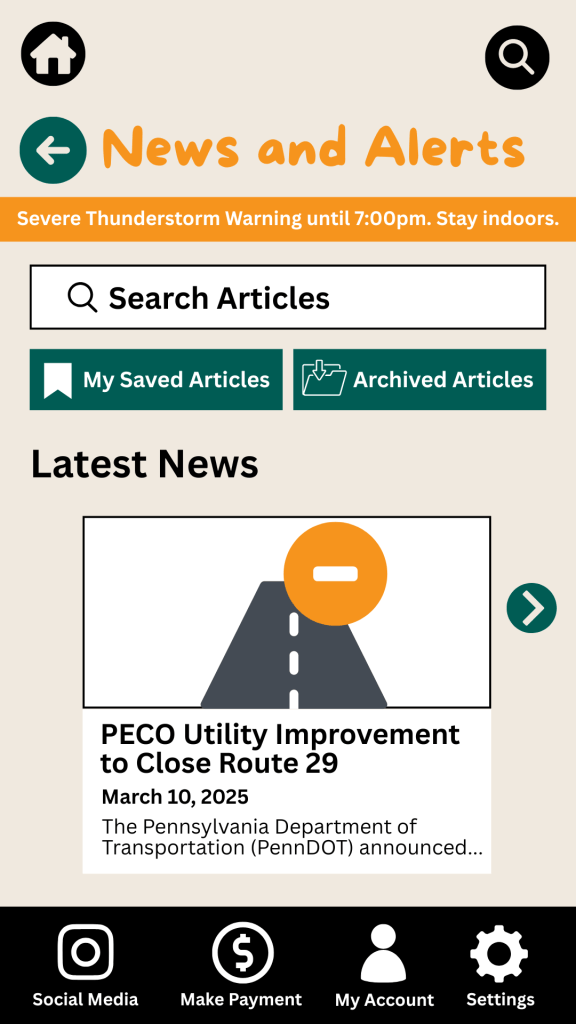
    2. News & Alerts

    • Displays recent news articles and important alerts.
    • A search function to find specific articles.
    • A ‘Read More’ option linking to the full website for further details.

    3. Events

    • A calendar view of upcoming township events.
    • Ability to filter events by category (e.g., community meetings, recreational activities).
    • Option to set reminders or add events to a personal calendar.

    4. Township Services

    This section provides quick access to essential services:

    • Public Safety (police, fire department, emergency contacts).
    • Trash & Recycling Schedule.
    • Permits & Licensing.
    • Tax Information.

    5. Report an Issue

    • Residents can report problems like potholes, streetlight outages, or stormwater issues.
    • A category for “Other” issues, where users can write about their issue and upload an optional photo.

    6. Township Directory

    • Contact details for township offices, emergency services, and elected officials.

    7. More

    • Links to the township’s website and social media pages to encourage community engagement.

    My proposed companion app for Schuylkill Township.

    Click here to read more about my companion app creation.

    Bridging the Gap Between Website & App

    This companion app isn’t meant to replace the website – it’s designed to complement it. The website remains the primary source for comprehensive township information, while the app focuses on real-time updates and quick access to services. By strategically selecting what content to include, I ensured that the app remains lightweight, user-friendly, and functional.

    Lessons Learned in App Information Architecture

    This project reinforced some important lessons in mobile UX design and information architecture:

    1. Simplicity is key – Overloading an app with content leads to confusion; prioritization is crucial.
    2. User behavior should guide design – Understanding why residents visit municipal sites helped shape the app’s structure.
    3. Navigation should be effortless – A clear, well-organized layout enhances usability and efficiency.
    4. Consistency between web and app experiences matters – While the app offers streamlined content, it still aligns with the website’s overall branding and structure.

    Final Thoughts

    Creating this app was a fascinating dive into the balance between accessibility, usability, and design. It challenged me to think critically about how users interact with information and how to optimize their experience. By focusing on essential content, intuitive navigation, and quick access to vital services, this app aims to make township information more accessible than ever.

  • Building a Website is Like Building a House: The Role of Information Architecture

    Building a Website is Like Building a House: The Role of Information Architecture

    Image of a floor plan from pixabay.com

    Imagine building a home. You carefully plan the rooms, decide how they connect, and ensure the layout makes sense. A strong foundation is key – without it, the house won’t function properly. The same applies to websites and apps. Behind every intuitive digital experience lies a well-structured system known as information architecture (IA), the backbone that keeps everything organized and accessible.

    What is Information Architecture?

    Information architecture is an evolving and ever-changing field that focuses on structuring and organizing content effectively within a website or app. Dan Brown, in his article 8 Principles of Information Architecture, describes key IA concepts:

    • Objects: Objects on a site have discrete sets of behaviors. The content on a site is living with a recognizable structure.
    • Choices: It is important to offer meaningful choices to users.
    • Disclosure: Since the human brain can only process so much information at once, it is essential to practice progressive disclosure, a user interface technique that only shows the needed information first and reveals more as the user interacts with the page.
    • Exemplars: Show examples of content in categories.
    • Front Doors: It is important to understand that 50 perfect of site visitors will come through a different page than the home page. Take the user where they want to go but also show other related content found on the site.
    • Multiple Classification: Utilize classification schemes to label site content. Don’t provide too many classifications, which can easily overwhelm the user.
    • Focused Navigation: Use different navigation bars to structure content on a site, including topic navigation, timely navigation, sign post navigation, and marketing navigation.
    • Growth: Design a website in anticipation of growth.

    These above principles help create logical, user-friendly experiences.

    At its core, information architecture defines the relationships between all areas of a site. This week, I explored two essential components of IA: site maps and navigation. While they are related, they serve different purposes:

    • Site Maps: A blueprint of a website, listing all pages and their hierarchical structure.
    • Navigation: The links and pathways that guide users from one page to another.

    Going back to the house analogy: a site map is like a blueprint, outlining all rooms and their connections, while navigation is the hallways and doors that allow movement between them. Both are critical for a seamless user experience.

    Analyzing & Reworking a Township Website

    With this knowledge in mind, I analyzed the information architecture of my own township’s website – Schuylkill Township. My goal? To evaluate the current structure, identify areas of improvement, and propose a new, streamlined site map.

    Step 1: Mapping the Current Site

    To start, I explored the main navigation bar, footer, and subpages, taking note of structure, cohesion, and ease of access. I then created a visual site map in Canva, categorizing pages with different colors to denote their role in the hierarchy:

    • Home Page
    • Sections
    • Pages & Subpages
    • External Links
    • Pages with Internal Links

    The current site map for Schuylkill Township, Pennsylvania.

    Step 2: Identifying Strengths & Areas for Improvement

    While analyzing the site, I found aspects that worked well: easily accessible footer links and a secondary navigation bar with quick links.

    However, there were also areas that could enhance the user experience:

    • Sticky Secondary Navigation Bar: I proposed making the secondary navigation bar a sticky bar, meaning it remains visible as users scroll. This makes important links more accessible without excessive scrolling.
    • Reworking the Government Section: The current “Government” section houses both general information about the township and official government-related content. To reduce clutter, I separated “About” into its own category, making both sections clearer.
    • Adding a “News & Events” Section: Currently, news is located near the bottom of the home page, requiring users to scroll down to see updates. Many other municipal sites include “News & Events” in the main navigation menu, so I followed this best practice to improve visibility.
    • Renaming and Merging Subpages: Some subpages had unclear or overly complex names. For instance, I changed “Recollections of Our Past” to “Historic Resources” to better reflect the page’s content. I also merged pages with minimal content to simplify navigation.

    My proposed site map for Schuylkill Township, Pennsylvania.

    Click here to see the current site map and proposed site map in more depth.

    Lessons Learned from this Experience

    Working on this project gave me a newfound appreciation for the complexity of website structure. At first glance, a website might seem straightforward, but behind the scenes, there are countless decisions shaping how users find and interact with content. Here are some of my key takeaways:

    1. Clear organization enhances usability – A well-structured site helps users find what they need quickly and easily.
    2. Naming matters – Concise, descriptive labels improve navigation and comprehension.
    3. Navigation should be intuitive – If users struggle to find information, the design needs rethinking.
    4. Hierarchy should be logical – Content should be arranged in a way that makes sense, both structurally and contextually.
    5. Adaptability is crucial – As technology and user needs evolve, websites must be flexible enough to grow and change.

    Final Thoughts

    This deep dive into information architecture was both exciting and meticulous. Before this project, I had never closely examined a website’s structure or considered how sections, placement, and navigation impact user experience. By researching various municipal websites and reworking Schuylkill Township’s site map, I gained valuable insight into making digital spaces more accessible, navigable, and clear.

    A well-structured website is like a well-built house – it needs a strong foundation and a layout that makes sense. By applying the principles of information architecture, we can create digital experiences that are not only functional but also intuitive and user-friendly.

  • Unlocking Creativity: Exploring the Ideation Phase in Design Thinking

    Unlocking Creativity: Exploring the Ideation Phase in Design Thinking

    Creating an App: The Beginning Phase

    This week, I was presented with a thought-provoking question: How do you create an app? And where do you start? As part of my graduate class on Ideation, Prototyping, and Testing, I was challenged to explore the beginning stages of app development. Until now, I had never considered creating my own app. Faced with this creative challenge, I wondered: Where do I begin?

    I started by diving into the Ideation phase of the Design Thinking Process. This stage is all about generating ideas – the good, bad, and everything in between – to identify potential solutions to a problem. Through research, I discovered various Ideation techniques, including Brainstorming to Worst Possible Idea to Mind Mapping, and more. Ultimately, I decided to experiment with three techniques: Braindumping, Mind Mapping, and Sketchstorming. Here’s how each method shaped my app idea.

    My Ideation Phase of Creating an App

    Braindumping: Getting Every Idea on the Table

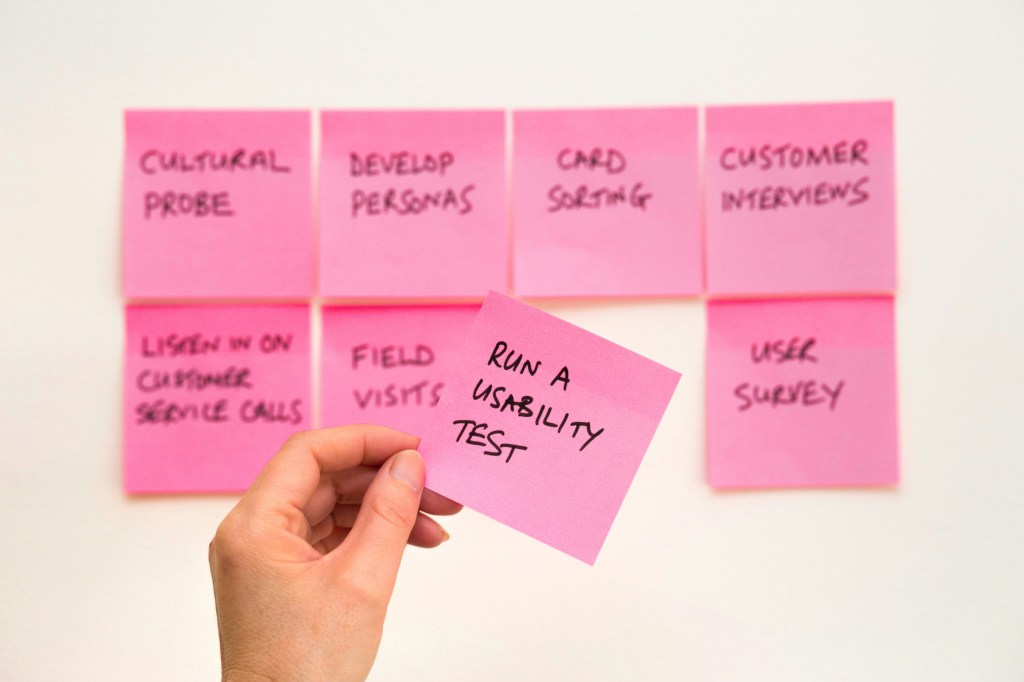
    I began with Braindumping, a technique that involves writing down ideas freely without judgment or filtering. Using sticky notes, I jotted down responses to key questions: What are my interests? What do I look for in an app?

    This exercise helped me identify four core interests: running, traveling, food, and dancing. I then brainstormed potential apps for each category.

    • Running: A platform to connect with local runners or a personal coaching app.
    • Dancing: A virtual dance studio offering live and pre-recorded lessons.
    • Traveling & Food: An app that helps users find restaurants based on dietary preferences and allergies.

    One idea resonated with me the most: an app that combines food and travel to help users find restaurants based on dietary restrictions. This concept stemmed from a personal experience with my mom; she follows a gluten-free diet and often struggles to find suitable dining options. With this in mind, I moved to the next phase: expanding the idea through Mind Mapping.

    Mind Mapping: Structuring the Concept

    To further develop my idea, I created a Mind Map, a technique where a central theme branches out into subtopics and related concepts. At the center of my map was the core idea: A restaurant-finding app for dietary preferences. From there, I created branches to explore the app in more detail:

    • App Features
    • Pages/Tabs
    • Goals

    Mind Mapping allowed me to see the app’s potential features at a glance, providing clarity on what to include in some potential mockups. This led me to explore the Sketchstorming technique.

    Sketchstorming: Bringing the Idea to Life

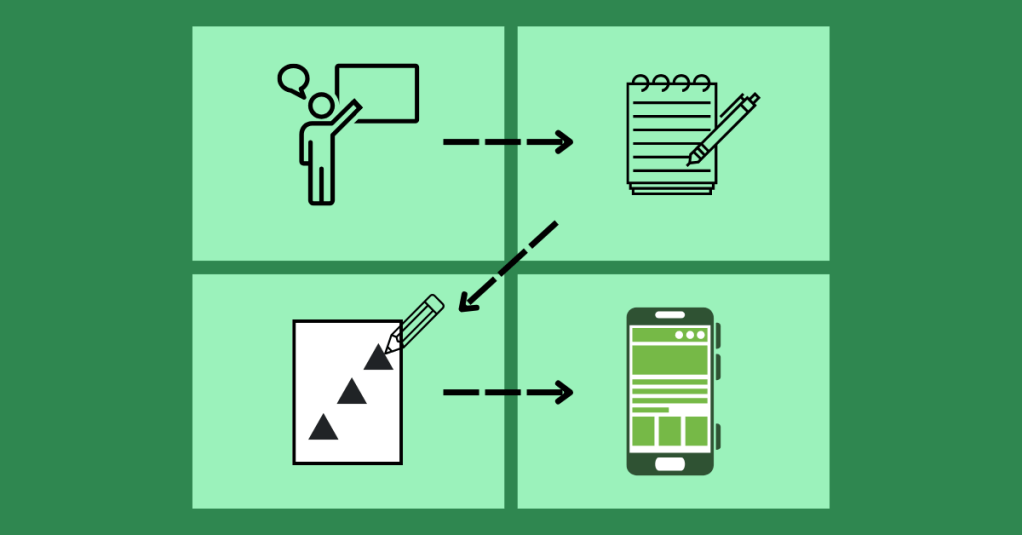
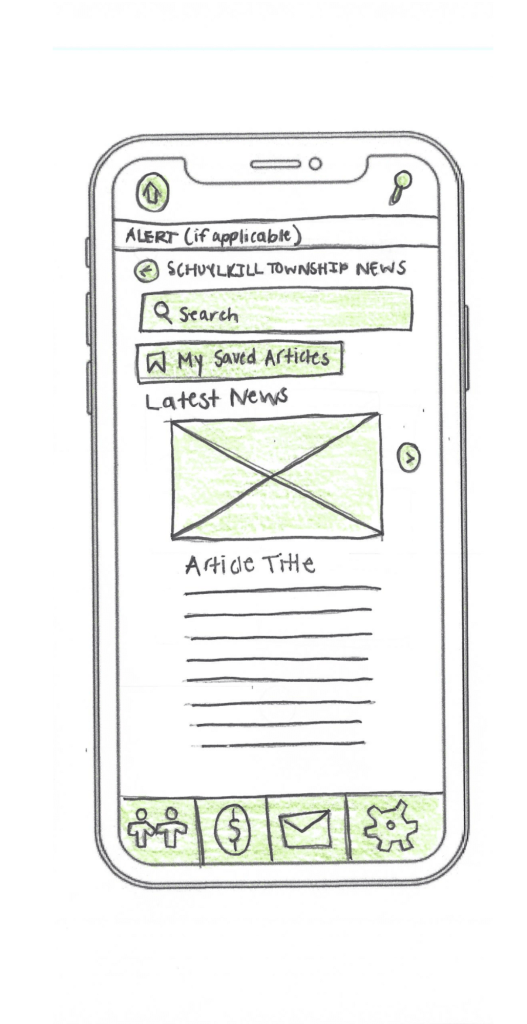
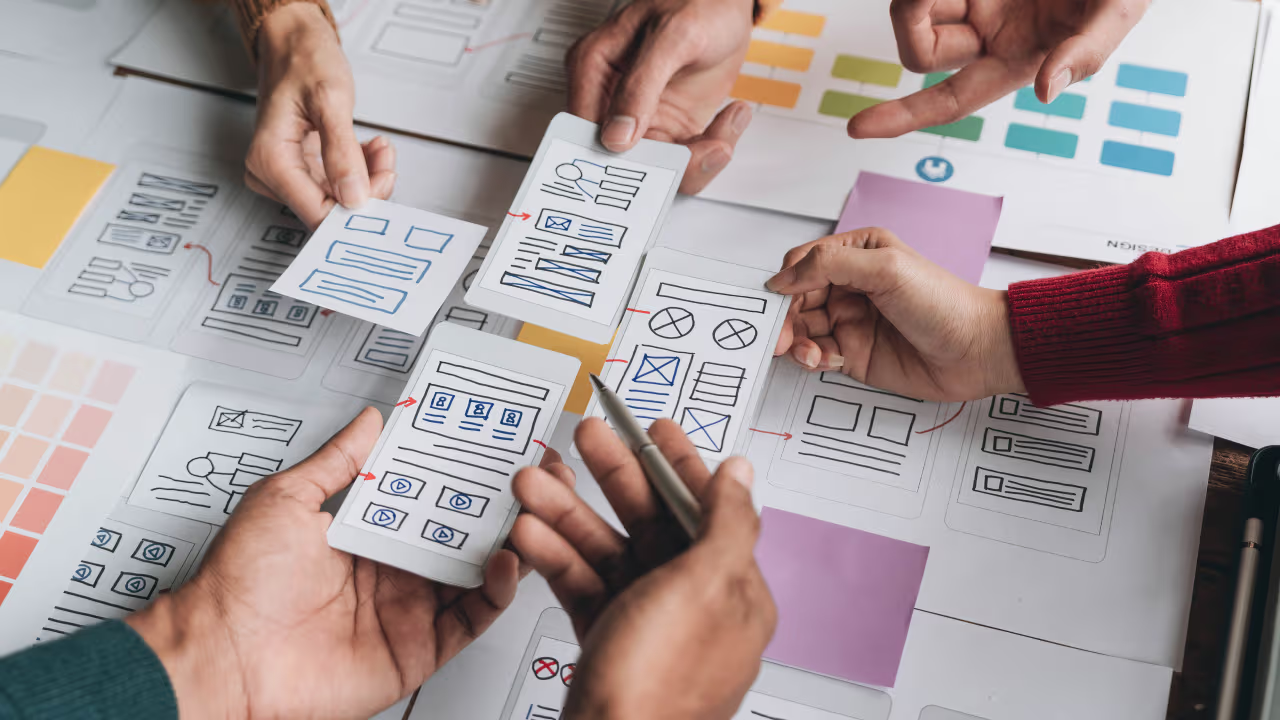
    Sketchstorming involves quick, rough sketches to conceptualize a product’s interface and layout. I began by sketching the app’s landing page and main tabs:

    • Profile: Where users input their dietary restrictions.
    • Search: A customizable restaurant-finding tool.
    • Translation: A language-assist feature for travelers.
    • Community: A space for users to share restaurant recommendations.

    Sketching helped me visualize the user experience, making the app feel more tangible. I realized that combining ideation techniques – starting broad with Braindumping, refining ideas through Mind Mapping, and visualizing them with Sketchstorming – was instrumental in shaping my concept.

    Reflections and Next Steps

    This was my first time formally using the Design Thinking Process, and it was both challenging and rewarding. By exploring multiple ideation techniques, I gained a deeper understanding of how to refine an idea and bring it to life. Moving forward, I’m excited to continue to study the Design Thinking Process.

    Have you ever used an Ideation technique? I’d love to hear how you approach creative problem-solving!

  • Module 7: Advanced Motion

    Module 7: Advanced Motion

    For this last module, I explored advanced animation techniques and worked on the final project for “Motion Across Media.”

    Reading & Writing

    This week, I read Chapter 11, “Show and Tell,” in Liz Blazer’s Animated Storytelling: Simple Steps for Creating Animation & Motion Graphics. This final chapter focuses on strategies for effectively sharing and promoting animation projects. She provides steps to make your project stand out among others. In prior chapters, Blazer described how to tell a story in an animation project, and now it’s time to tell the story of the animation project.

    1.) Package Your Project: Animators must package their project in a professional way. The following steps will ensure that your audience has everything they need to view your project and consider it for awards:

    • Upload a password and share a workable link. The favorite service for uploading videos that are password protected is Vimeo.
    • Design a clean logo for the title of the project paired with a still photo from the film that captures the essence of the project.
    • Write a concise, clear description of the project that is one to two sentences in length. This hook will be used on other publications referring to your project.
    • Create a memorable, eye-catching, thought-provoking tagline to make your film stand out.
    • Write a director’s bio that is short and sweet. This can include what you want to be known as professionally. It should list your professional title and accomplishments that support that role.
    • Write the story of your film: Why did you want to make the film? Why did you feel a need to share this story? What was the process of making this film? Make sure to include both mistakes and triumphs.

    2.) Determine Where to Show Your Film: Head back to your creative brief to remind yourself who the film is intended for, and this will help you select your audience and proper film festival for the film.

    3.) Consider Skipping the Film Festival Route: Blazer suggests that film festivals are not for everyone. Other alternatives include directly releasing the project on platforms like Vimeo. Releasing it online could help get quicker feedback and inspire ideas for your next animation adventure.

    4.) Create Your Network: Having a positive brand on the Internet is essential for filmmakers. Join online communities for designers, filmmakers, and artists. Talk to them. Share your work with them. Be inspired by them. This can form real relationships and help build connections for the future. It is also important to be supportive of other people’s work. Be present and engaged. Be a good audience. Make your brand known, but don’t overdo it. It is important to be selective. Mix up self-promotion and other types of posts. Tease your work, but don’t give away the whole story in the post. This will entice your audience to view your project. Finally, it’s essential to network in person. Establishing these connections are vital for success in the animation/filmmaking industry.

    5.) Share and Repeat: Be as professional as possible when sharing your work. Once you share one project, start with the next. Continue to sketch, storyboard, write, and animate new projects. The sky is the limit!


    As I reflect on this class, I am so happy with what I learned throughout these seven weeks. Coming into this class, I had no prior knowledge or experience with animation. From reading Liz Blazer’s book, I now know the essential steps in creating animation projects, from research and storyboarding to production to editing and packaging the video. It’s amazing what you can learn over seven weeks.

    I learned how to animate in Adobe Photoshop, Animate, and After Effects. I also learned how to design a project in Illustrator and import that project into After Effects. I discovered how to create keyframes in After Effects, create my own animations manipulating the Opacity, Position, Anchor Point, and Scale of an object, and how to import music and sound effects into After Effects.

    I also learned how important it is to plan out the project – the script, the music, the visuals, etc. If you are diligent in the pre-production phase, it makes the production and post-production phases much easier. It’s very interesting how each element of a story – the words, the art, the music – can all work together to create a beautiful piece.

    I am grateful for the knowledge I have gained, and I hope to continue to experiment with these programs in the future. I want to use After Effects when creating promotional videos at my current job to hopefully elevate the quality and creativity of these creations. I hope that animation will be a part of each step of my career.

    Research to Inform

    1.) Chroma Keying

    This is an example of Chroma Keying as the green screen is replaced with an image in the background. I thought this was a good example because the picture chosen for the background is relevant to the movement of the subject. It reminds me of someone dancing on Broadway in New York City.

    2.) Ken Burns Effect

    This YouTube video showcases the Ken Burns effect by adding movement to still photographs of Glacier National Park. I love this effect as it adds realism to the photos. It makes me feel like I am there walking on the trails and hiking the mountains. Adding this movement to still pictures creates a very interesting effect as I feel I am transported to the setting of the photo.

    3.) Motion Tracking

    Motion Tracking refers to digitally recording and following the movement of an object. In this example, the human’s movements on the left are being tracked by technology to create the animated figure on the right. I thought this was a very accurate example of how motion tracking would look. The movement is very realistic and matches well with the actual movement of the person.

    Create

    My Running Journey

    For my final project, I decided to create a video similar to the “Self-Introduction” video format because I really enjoyed creating that project! My goal was to illustrate my running journey from when I started running to the present. In this project, my goal was to incorporate multiple animation techniques that we learned throughout the class, including:

    1.) An Advanced Animation Technique: I chose to try out the “3D in After Effects” technique and manipulate a 2D photo. I chose a photo of my dad and I when I first started running. It was a little tricky to do this technique with that photo because his head is somewhat cut off in the photo, and rotating it too much would have revealed that, but I am happy with how it turned out! I definitely want to experiment more with this technique.

    2.) Creating shapes/lines with the line tool in After Effects. I utilized this strategy to create the “hill” animation when I talked about the hilly cross country course. I also used this when illustrating the length of a 100 meter race on a track. It was fun to experiment with trimming paths to create these animations.

    3.) Classic animations in After Effects, using keyframes to change Opacity, Scale, Rotation, and Position. I feel a lot more comfortable now creating keyframes and working with these animation options.

    4.) Using sound effects and background music. I added a typewriter sound effect at the beginning of the video when I chose the typewriter text animation. I also added a heart beat to the heart animation to further showcase that my love for running was expanding in high school.

    5.) Using the “squash and stretch” animation principle on the location symbol. I wanted to utilize at least one of the animation principles throughout this project.

    I also wanted to create a consistent color palette throughout the video, so I chose a blue/green color, wrote down the HEX and RGB codes, and used those codes throughout the project. I hoped to create a consistent and coherent video that used the same colors and fonts from start to finish.

    I have thoroughly enjoyed this class. Coming in with no animation experience, I am so grateful for all of the techniques I learned. I’m excited to continue to experiment in these programs and explore more advanced animation techniques in the future.

  • Week 6: User Interface Animation

    Week 6: User Interface Animation

    For Week 6 of Motion Across Media, I am reading about the animation process in Liz Blazer’s Animated Storytelling: Simple Steps for Creating Animation & Motion Graphics.

    Reading & Writing

    Chapter 10: Animate! in Liz Blazer’s Animated Storytelling focuses on bringing a story to life through movement, emphasizing the importance of intentional animation choices. In this chapter, Blazer brings together all the tips that were taught throughout the beginning sections of her book: storyboards, color scripts, soundtracks, and more. Before starting to piece together your animation, she suggests to create a production calendar to track progress and ensure deadlines are met. She states to print out a calendar, fill it in backwards starting with the final delivery date, and then work back through post-production, production, and pre-production. This will help create a realistic timeline for the project. Once this is created, the information can be easily transferred to a digital calendar that can be shared with creative partners.

    Blazer highlights a few more important steps when starting an animation project, including making sure your tech equipment is up-to-date, creating simple file names to stay organized, and backing up your work consistently. Once these steps are complete, she suggests to start with the easy shots to gain confidence with the project. Since animation is a time-consuming endeavor, it is important to strategically plan out all shots before starting to avoid cutting any shots during the production phase.

    Blazer also stresses the importance of strategic movement in animation. She asserts to always anticipate and follow through to help illustrate the physics of gravity on weight and movement. Composing directional movement, such as horizontal, vertical, diagonal, or circular movement, will create consistency throughout an animation. In addition, Blazer offers tips to create a visually compelling animation:

    • Don’t put the subject in the center of the frame too often.
    • Mix up shot lengths. Use a mix of close-up shots, medium shots, and long shots.
    • Mix up shot timing. This will create different paces in your animation.
    • Add blur and grain, grunge, or vignettes.
    • Be flexible with the soundtrack. This could change during the production phase.
    • Mute the soundtrack to check that your animation is expressive without the music or sound effects.

    By reinforcing the idea that animation is storytelling in motion, Blazer guides animators to make thoughtful, impactful choices that enhance their projects.

    Research to Inform

    This UI GIF caught my attention because of the bright colors used in the design. I also think this showcases excellent UI design because as one section opens, the other closes. This allows the user to view the entirety of each section on the screen without scrolling.

    I liked that this graphic showcases good and bad UI design. Being a beginner in UI design, it was interesting to see how little changes in movement can impact user experience. The panel on the left shows different elements moving in the same direction, while the one on the right depicts movements from many directions. It is important to be consistent in movements and not overcomplicate user interface designs.

    I chose this GIF because I like the switch from blue to black. I also like the simplicity of this design. I also like that the “X” is fully animated when the blue object passes through it. This is a very intentional UI design.

    I love how the paper airplane is shot off into the distance. This animation also uses the “anticipation” principle of animation by the page dragging down and then flinging up to release the paper airplane. I also like the bounce that is created after the paper airplane flies. This adds to the realism of this animation.

    This animation inspired the one that I created this week. I liked the animation switching from 4 to 5 and how the 5 started upside down until the new page appeared. I also like that the envelope is static. With the paper and number both animating, adding another animation would maybe make this GIF a little too busy. The still envelope contrasts well with the movement in the rest of the GIF.

    I love the morphing of the circle in this GIF. It almost creates a water-like animation where droplets of water are breaking off the big circle. I also think using the blue color adds to this effect. I also like that the three smaller circles go back into the larger circle in reverse order. This creates a nice loop in the design.

    This one is definitely a more complex UI design. but I enjoyed the flow from screen to screen. I like how the animations are consistent from screen to screen, creating a cohesive user interface design. I also like the contrast of the still elements with the moving screens.

    I think this UI animation does a great job of capturing a geometric theme. Each animation created in this design morphs into some geometric shape – circles, hexagons, lines, etc. Creating consistency and a theme are both important elements of UI design.

    Create

    User Interface Animation: Notification Bell

    Above are my User Interface Animation video and GIF. I first started in Adobe Illustrator and used the pen tool to design a bell. I imported the design into Adobe After Effects and then used the ellipse tool to create the circles. I wanted to change the size of the circle for when the person “clicked” on it and used the scale tool to achieve this.

    I then worked on animating the bell, and I moved the Anchor Point to the top of the bell to hopefully create a realistic back-and-forth motion of a bell. When changing the size of the bell with the scale tool, I copied the layer and moved the anchor point to the center of the bell to ensure that the size of it changed from that anchor point. It was a little tricky having two different anchor points, but with some experimentation, I think we figured it out!

    For the blue notification circle, I wanted the “1” to mimic the motion of the bell to create a cohesive design. I matched the angles that the bell was moving with the “1” to achieve this effect. I also wanted to practice creating a mockup, so I grabbed an image from unsplash.com and put the animation on a phone screen.

    In terms of sound effects, I used a click noise to emulate the person clicking on the icon, a ringing bell sound to showcase the bell moving back-and-forth, and a “pop” sound for when the “1” disappears. These sound effects are from pixabay.com. I also added in some happy and higher-energy background music to illustrate the excitement of getting a notification.

    Overall, I thought this was a challenging project. I don’t have any prior experience with UI design, and I think I have to train my mind to think like a UI Designer. The hardest part for me was coming up with an idea for the project. I was inspired to choose this notification animation because I was looking through all the notifications on my phone, and I thought it would be a fun animation to design. I am happy with how it turned out and I’m looking forward to practicing more user interface animations in the future.

  • Module 4: Stop Motion Animation II

    Module 4: Stop Motion Animation II

    Readings & Writings

    This week, I read Chapters 7 and 8 in Liz Blazer’s Animated Storytelling: Simple Steps for Creating Animation & Motion Graphics.

    Chapter 7: Sound Ideas

    In Chapter 7, Liz Blazer emphasizes the critical role of sound in animation and motion graphics. It is essential to sync the audio with your story. Sound can paint a picture of action and help tell a story. Blazer encourages animators to have sound lead a story and not wait until the middle or end of a project to select the sound. The sound should drive the story.

    In this chapter, Blazer identifies the difference between diegetic and non-diegetic sounds. Diegetic sound come from the physical world, such as a dog barking or a squeaky door, and music whose source can be seen in the scene, such as on a radio. On the other hand, non-diegetic sounds are not visible on the screen and are not natural to objects in the scene, such as a sad trombone illustrating the upset emotions of a character.

    Blazer also discusses two primary strategies for incorporating sound in a project: scoring to theme and scoring against theme. Scoring to theme involves selecting music that aligns with the scene’s tone, enhancing the emotional impact of the scene. Scoring against theme uses music that contrasts with the visual elements, creating an unexpected juxtaposition that can add depth or irony to the story. Thoughtful and intentional sound design can significantly elevate the storytelling experience by reinforcing the audience’s expectations.

    Chapter 8: Design Wonderland

    In Chapter 8, Blazer highlights the importance of world-building in animation. Blazer offers the following techniques to help establish the rules of your animation’s world:

    • Time and Place: What is the time and place of your world? What setting is your world in?
    • Natural Order: What are the physical rules of your world?
    • Social Order: What are the social rules of the world? Do laws exist?
    • Day-to-Day Life: Where do characters work, live, eat, etc.?
    • Family & Community: What do the family structures look like?
    • Technology: What technological advancements exist in the world? Are there any modes of transportation? Do phones exist?

    Blazer also suggests to gain inspiration from the physical world. She advises her audience to look around and explore the physical, social, and visual norms in society. In terms of motion graphics, it is essential to investigate brand values and establish visual rules. Creating and sticking to strict rules, along with finding inspiration from our world, will assist in creating immersive and cohesive worlds. By thoughtfully selecting design elements, animators can craft environments that not only support the story but also captivate viewers.

    Research to Inform

    To prepare for creating my stop motion animation project, I researched a few projects with effective title and end sequences along with some projects that utilized effective audio. I hope to use some of these techniques in this project and in future animation endeavors.

    Text Animations

    1.) Catch Me If You Can

    This title sequence is effective because it provides a preview of what’s to come in the movie. Catch Me If You Can, directed by Steven Spielberg, is about an impersonator and master of deception. The title sequence is fast-paced, energetic, and consistent throughout each slide. The mysterious jazzy music in the background also adds to the excitement and action that we are about to see in the film. The bold colors are eye-catching, and the moving graphics showcase that the con artist is always on the move.

    2.) Spider-Man 2 Opening Credits

    I love the consistent text animation that is used in this title sequence. The letters move in different directions, almost one-by-one, in a very fast animation. The path that the letters animate on almost creates a spider web-like image. I think this is a very useful text animation as it illustrates the main theme of the movie. In addition, the fast-paced animations along with the suspenseful, building music creates a sense of urgency and foreshadows the action in the movie. I also love the animated graphics, the use of black and red, and the slanted lines that further emphasize the web theme.

    Background Music & Sound Effects

    1.) Monsters Inc.

    The light-hearted, fun jazz music used in this movie introduction caught my attention. At the beginning of the clip, the animations match up with each jazz note in the background. I think this is very effective and showcases that the music and animation can enhance one another and work hand-in-hand. In addition, when the “Monsters, Inc.” text is changed and hit with the monster’s tail later on in the video, there is a bump sound effect that adds to the text animation change. I think this is a great choice by the animators to create a dynamic and fun opening sequence for this hit Disney film.

    2.) Captain America: The First Avenger End Credits

    The background music used in this end sequence is upbeat and exciting, and this leaves the audience with a sense of hope at the end of the film. Since this movie is about a hero fighting for justice and freedom, the music adds to this optimistic theme. The music also has a patriotic feel to it, and this compliments the graphics in the end sequence. It is important that the music matches the theme of the project to enhance it’s overall quality and make it more realistic.

    On a side note, I love the style of art in this end sequence. I think it is very well done with intricately selected music, color palette, and text.

    Create

    The Shape-Shifting Shoelace

    I was very excited to work on the stop motion animation project this week because I was passionate about the “Shape-Shifting Shoelace” idea. For this project, I used my Canon camera and a tripod from work. I set up blank large white sheets of paper on a flat surface to take pictures and taped the paper down to avoid any movement. I also used a white background to contrast with the dark shoelace color to emphasize the shoelace’s movements.

    I took almost 900 photos in total. The biggest challenge for me with this project was moving and manipulating the shoelace. Because it’s a thin and flimsy material, it was hard to move it on and off the shoe and create shapes with it. For this reason, I decided to create more simple shapes with the shoelace. Overall, I think the hardest part was weaving the shoelace back into the shoe. I wanted to avoid moving the shoe when doing this, so that was the toughest challenge.

    After finishing the production phase, I imported the photos into Premiere Pro and created title and end sequences in After Effects. For both sequences, I used a font titled “Running” for the “SHOELACE” test because the thin line design reminded me of shoelaces. I also chose a blue background to match the color of the shoe. I used the same animations in both the title and end sequence to play along with the “Book Ending” storytelling technique. I also edited the image sequence in After Effects and used the color correction tool to increase the brightness of each photo.

    In terms of music and sound effects, I wanted to choose an upbeat and fast-paced soundtrack to compliment the fast-moving shoelace. With the theme of shoelaces, shoes, and running, I thought that a quick, excited soundtrack would work well in the background. The background music is from bensound.com. In addition, I decided to use three sound effects in the project to further emphasize the shapes created by the shoelace. I used a heart beat sound effect for the heart, rustling tree branches for the tree, and a hissing/rattling sound for the snake. The sound effects are all from pixabay.com. My hope is that these sound effects help communicate the shapes made by the shoelaces.

    This was a fun and challenging project, and I’m happy with how it turned out. I enjoyed learning stop motion animation and furthering my knowledge in After Effects and Premiere Pro. 

  • Module 3: Pre-Production for Stop Motion Animation

    Module 3: Pre-Production for Stop Motion Animation

    Reading & Writing

    This week, I read Chapters 5 and 6 in Liz Blazer’s Animated Storytelling: Simple Steps for Creating Animation & Motion Graphics as we prepared to create stop motion animation videos.

    Chapter 5: Color Sense

    Blazer opens the chapter with explaining color vocabulary, including hue, saturation, and value. Hue refers to the common color name like blue or green. Saturation is the intensity of a color, and value is the lightness or darkness of a color. This chapter explores the power of color in animation and motion graphics, emphasizing how color choices influence mood, storytelling, and audience perception. Blazer explains that color is more than just an aesthetic decision – it’s a psychological tool that can evoke emotions. She discusses the significance of color harmonies, contrast, and saturation in creating a compelling visual narrative. In the chapter, Blazer notes the difference between CMYK (Cyan, Magenta, Yellow, Black) and RGB (red, green, blue) color systems. CMYK is used for print materials and colors are created by mixing pigments on paper. On the other hand, motion uses RGB where light is used to mix color.

    Blazer also walks through the steps to create color scripts, a technique used in animation to plan color palettes across an entire sequence. By mapping out color changes over time, artists can reinforce story beats and emotional shifts. Blazer offers the following tips when using color in an animation project: limit color palette, design for movement, use surprise color for punctuation so it stands out, use one thematic and one accent color, and make your own rules.  

    Chapter 6: Weird Science

    In this chapter, Blazer encourages readers to experiment with animation and to not be afraid to try weird, creative rituals. Like Jimi Hendrix made his own weird science, Blazer suggests that animators should experiment, mess around, test limits, and do something new with an animation. This chapter delves into the technical and experimental side of animation, encouraging artists to push creative boundaries by incorporating unexpected elements. Blazer discusses the role of physics, movement, and timing in making animations feel believable yet imaginative. She highlights how exaggeration, squash and stretch, and secondary motion add depth to animated storytelling, making scenes more dynamic and engaging.

    The chapter also emphasizes the importance of observation and curiosity in the animation process. Blazer encourages animators to study real-world physics and then bend those rules to create something new. She explores the connection between art and science, stating how technological advancements, such as motion capture and procedural animation, can improve traditional animation techniques. This chapter inspires readers to blend logic with creativity to create unique animations.

    Research to Inform

    To prepare for the creation of my own stop motion animation, I watched a series of videos that used different techniques to inspire my video.

    1.) Paper Stop Motion Animation

    I thought this was a very unique way to showcase stop motion. The creator cut out pieces of paper to create a scene and moved the pieces with their hands. When their hand touched the screen, a new element would appear.

    2.) Fruit and Vegetable Stop Motion

    This was a great example of a nonlinear story line where the fruits and vegetables would transform into other objects. For instance, the creator had a watermelon transform into a globe. Then, the seeds from the watermelon fell off to the ground which then morphed into an egg. I was personally struggling with coming up with an idea for nonlinear stop motion, and I thought this video was very helpful in thinking of an idea.

    3.) Clay Stop Motion

    This video utilized 2500 pictures, and the creator used clay to morph each object into the next. First, the craftsmanship of this video is impeccable, and I aspire to achieve this type of cleanliness and precision in my animations one day. It’s amazing how animators can think of these “out-of-the-box” ideas to create a storyline with just small pieces of clay. I also liked how the creator used sound effects to enhance the video and make it sound more realistic.

    4.) Stop Motion with Drawings and Origami

    In this video, the creators illustrated the idea of “where do ideas come from?” They used pieces of paper and drew elements on each page. I thought this was another create idea with a linear story line. They first introduced the question, answered with through different animations, and then finished with “The End.”

    5.) Elephant Stop Motion

    This is another clay animation, and I love how they illustrated a clay elephant coming to life. The sound effects were well placed and enhanced the story. They also used different hand motions to sculpt each part of the elephants. I also like how they created a still background that wasn’t just blank – the nature elements, including the mountains and the trees, help paint the picture of the scene. In my future stop motion animation video for next week, this might be a good idea. I want to strategically think about the background and how it can enhance the animation.

    Create

    Pre-Production Templates & Storyboards

    For my two stop motion animation project ideas, I thought I would stick with the same theme of racing and running, similarly to what I created this week. Since Blazer suggested to choose a subject that you are very passionate about, I thought this would be a good topic for me.

    When thinking of an idea for my linear storyline, I was inspired by three Hot Wheels cars I found in my basement when I was looking for materials for this week’s stop motion animation project. When I was younger, I was obsessed with all things cars, and I thought it would be a fun idea to create a stop motion animation of the three cars racing each other with car-related sound effects.

    For my non-linear storyline (and if I’m honest, I think I prefer this one over the other one), I was inspired by looking at my running shoes. I thought, “what if I could create an animation with a shoelace?” I was thinking I would start with a shot of the shoelaces attached to the shoe, and then it would venture off the shoe, go through a series of animations, and then return to the shoe. This would follow the Book Ending storytelling strategy as discussed in Blazer’s book.

    See the link above for my creative briefs and storyboards!

    My First Stop Motion Animation – M&M Race

    For my first-ever stop motion animation, I decided to create a race with two M&M’s. Since I am a runner, I was inspired to create something involving a race. When I was younger, I would always create obstacle courses in my backyard, so I was inspired to create a little obstacle course race for the M&M’s.

    For this project, I used my Samsung Galaxy s20 and took 350 photos. I had a few issues with importing the files, and I had to rename each photo to import the images as an image sequence into Adobe Premiere Pro. I decided to take aerial shots for this project and taped down the marshmallows, popsicle sticks, and paper to the table so there would be no movement besides the M&M’s. This was a fun project to create, and I’m excited to create another stop motion animation video next week.

  • Module 2: Personal Intro in AE

    Module 2: Personal Intro in AE

    Readings and Writings

    This week, I read Chapters 2, 3, and 4 in Liz Blazer’s Animated Storytelling: Simple Steps for Creating Animation & Motion Graphics.

    Chapter 2: Storytelling

    In this chapter, Blazer asserts that storytelling is limitless, where you can take the viewer on a journey simply with shapes and colors. She introduces the idea of story “beats,” and it is important to plot them out to create a unified story with the most emotional impact. Even though there is boundless potential in storytelling, it is essential to approach it with discipline and intentionality. The chapter introduces two storytelling models:

    1. Three-Act Structure:
      • Act 1: Problem Introduction (The Beginning): Establishes the main character and presents a problem or conflict.
      • Act 2: Attempt to Solve (The Middle): Depicts the character’s efforts to address the problem.
      • Act 3: Resolution (The End): Concludes with the problem being solved.

    This structure is versatile and can be applied to motion graphics projects. For instance, Act 1 might present a question, Act 2 explores potential answers, and Act 3 provides a solution.

    • Nonlinear Story Structures: Blazer also explores alternative storytelling methods that don’t follow a traditional linear path. They follow their own set of rules and are often whimsical and unorthodox. These structures offer creative freedom to the animators. Blazer shares some approaches within nonlinear storytelling:
      • Book Ending: Starting and ending with similar scenes or themes.
      • The Beaded Necklace: A series of related but distinct segments connected by a common theme.
      • The Countdown: Establishes the climax and then rhythmically builds towards that climax. The build becomes more intense the closer to the climax.
      • The Puzzle: Presenting pieces of the story that the audience assembles to form a complete picture. This structure offers a fun interactive element for its audiences.
      • High Concept: These films have a basic concept that is so strong that it controls all other elements of the film.

    These methods encourage creators to think outside traditional frameworks and experiment with the flow of stories.

    Chapter 3: Unlocking Your Story

    This chapter serves as a bridge between conceptualizing a story and visualizing it through storyboarding. Blazer provides practical exercises to help creators edit their narratives:

    1. Clear Conflict, Reveal it Early: Identify the central conflict of your story and introduce it promptly to engage the audience.
    2. Start Later: Begin the narrative at a compelling point and skip the set up to this point. This is the “rip the Band-Aid off” strategy. The goal of “Start Later” is to hook the audience immediately.
    3. Biggest Secret: Determine what information is withheld from the audience and decide the most impactful moment to reveal it.
    4. Get Graph-y: Visualize the emotional trajectory of your story using graphs.

    Blazer also introduces some strategies for experimental animation, including visual music, pure poetry, repetition/evolution, continuity/diversity, anthology, and cut it out & play. These exercises are designed to give the animator freedom to shed the rules of a traditional structure and to hone in on the visions that inspired the film in the first place.

    Chapter 4: Storyboarding

    Blazer emphasizes the importance of storyboarding as a tool to translate written narratives into visual sequences. She begins by introducing the idea of thumbnailing, which are the first rough sketches of storyboards. Good thumbnail drawings only show the most essential information. She outlines best practices for creating effective storyboards:

    • Shot Composition: Focus on framing, perspective, and camera angles to convey the desired mood and information in each shot. Some examples include a close-up, wide shot, and panning extreme wide shot.
    • Framing: Framing is about keeping the eye interested. Using the “rule of thirds” is a good strategy where you break your single frame into nine equally sized quadrants.
    • Staging: Planning out where to put the subject in space, creating a visual hierarchy.
    • Continuity: Continuity refers to the natural flow of visual information from one shot to another.
    • Clarity and Simplicity: Ensure that each frame communicates its intended action or emotion clearly, avoiding unnecessary complexity.
    • Consistency: Maintain uniformity in character design, proportions, and environments.
    • Feedback and Iteration: Regularly review storyboards with peers or mentors and be open to making changes.

    By planning through storyboards, creators can ensure that they create a compelling visual narrative.

    Research to Inform

    1.) Fritz-Kola

    This animated clip describes the creation of fritz-kola’s journey from a startup to one of Europe’s main cola brands. There were a few aspects of the video and choice of animations that piqued my interest:

    1. Color Palette: Throughout the video, Kinisi used black and white colors and halftone textures to illustrate this journey.
    2. Simplicity in the Background: I loved that the illustrations in the background were minimalistic.

    I think the hook they used about the creators of Fritz-Kola was very effective and relatable. They are trying to figure out what they wanted to do out of college, and Kinisi utilized a calendar animation to flashback to the beginning of their brand creation. In addition, one audio line about their goal stood out to me: “Make something that makes spending time in their favorite place even better.” Overall, the audio, sound effects, and animations work harmoniously together to whimsically illustrate the beginning of this brand in a concise and eye-catching manner.

    2.) “Longevity” by Chá de Bold Estúdio

    I chose Chá de Bold Estúdio’s animated clip because I was interested in the title: “Longevity Hackers.” I thought this could have multiple meanings, so I was curious to figure out what they meant by this title. This animated clip explores the idea of how humans try to beat death and increase lifespan. To illustrate this, death is made into a character. There were two animations that stood out to me:

    1. They used an escalator to illustrate how humans are trying to catapult human life.
    2. They created a scene of chess where the character “death” was playing a human. In the end, death declares “check-mate” on the human, showing that humans cannot escape death.

    The chess scene reminds me of the animated illustration in Harry Potter: Deathly Hallows where they describe the three deathly hallows and how death always wins in the end. I also thought that the tone of voice used in the audio was effective. The voice was serious and almost monotonous, conveying the severity of this idea.

    3.) “Outside” by Simon Braud

    The title “Outside” grabbed my attention to click on this animated video. I first thought, “what could Outside mean? Is this a video about nature?” After watching the video, I realized that “Outside” is the solution presented to the problem in the video.

    I like to split this video into three sections. The first section is characterized by a monotonous voice, more geometric animations, and sound effects that create a futuristic feel. Then, the middle section introduces the problem: the creative block. There is a shift in music here that elevates the intensity of this issue, and this builds until reaching the proposed solution.

    I also like the simplicity in the first clip. The words appear one at a time, and a simple sans serif font is used. This contrasts with the rest of the more complex animations throughout the rest of the video.

    One other element of this video that I thought was effective was the use of pauses in animation and audio. There is a pause after the clip of the trapped human, and this adds to the dramatic effect of the person being “stuck” because of a creative block.

    The animations in this clip are phenomenal. I’m curious how long it took to creative this video. I like how the animations seamlessly flowed from one to the next.

    Create

    Personal Introduction – Christian Schaaf

    This was my first time ever using Adobe After Effects, and I really enjoyed learning this program. I started off with writing my script and planning out the graphics and video clips that I wanted to use. I found all the images that I wanted to use, brought them into Photoshop and/or Canva, and exported them with transparent backgrounds. I also pulled some royalty-free images from pexels.com, one by Cristian Dina and the other from Emic Can Acer. My background music is “Ukelele” by Benjamin Tissot, a copyright-free music track from bensound.com. Following these steps, I got my camera and shot the few video clips that I wanted to include in the video. Once those steps were complete, I started working in After Effects.

    Once in After Effects, I wanted to choose a color palette for the graphics and text. I chose two main colors: a light blue and black. To ensure consistency, I wrote down the HEX code for the blue color and used that throughout the project. I had a fun time experimenting with the different text animation presets, trying to choose ones that would work best for each clip. For instance, there is a clip of me running, and the animation I chose for the text in that clip looks like it’s bouncing up and down. I chose this to try to mimic a running motion.

    I also enjoyed learning about keyframes and utilizing the scale, opacity, rotate, and position animations within this project. Overall, I had a fun time experimenting in After Effects, and I am excited to learn and practice more features in this program throughout the duration of this course.