Tag: prototyping

  • Bringing Ideas to Life: The Power of High-Fidelity Prototyping

    Bringing Ideas to Life: The Power of High-Fidelity Prototyping

    Low- and high-fidelity prototyping from The Product Manager.

    Have you ever looked at a mobile app and thought, “How did someone design this?” Behind every polished interface is a long journey of research, ideation, testing, and lots of prototyping. During my recent experience designing a companion app for Schuylkill Township’s website, I discovered how high-fidelity prototyping transforms concepts into tangible, testable designs. Let’s walk through what I learned and why fidelity in prototyping matters more than you might think.

    Understanding Prototype Fidelity: Low vs. High

    Not all prototypes serve the same purpose. When I first started this project, I didn’t realize that “prototyping” could look so different depending on the stage of design. In her article Low-Fidelity vs. High-Fidelity Prototyping: Key Differences Explained, Iulia Sorodoc describes that fidelity in prototyping is measured across three levels: low, medium, and high.

    Low-Fidelity Prototypes

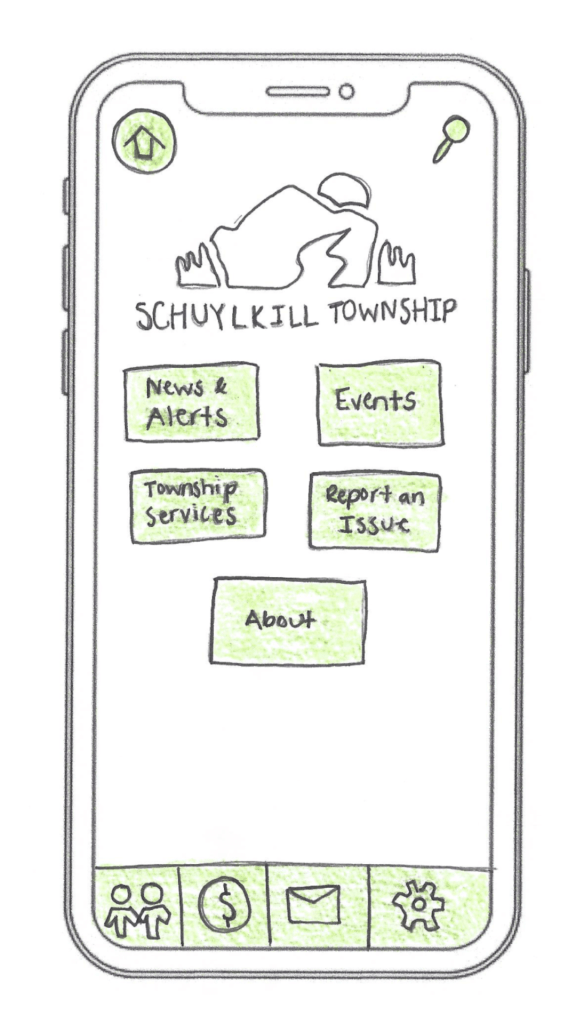
    Low-fidelity prototypes are simple, often hand-drawn sketches. They focus on layout and flow rather than visuals or interactivity, making them perfect for early-stage brainstorming. Low-fidelity prototypes are quick and inexpensive to produce, making them ideal for early-stage design. However, they have some drawbacks: they offer limited interactivity, don’t closely resemble the final product, and can make it harder to gather meaningful user feedback.
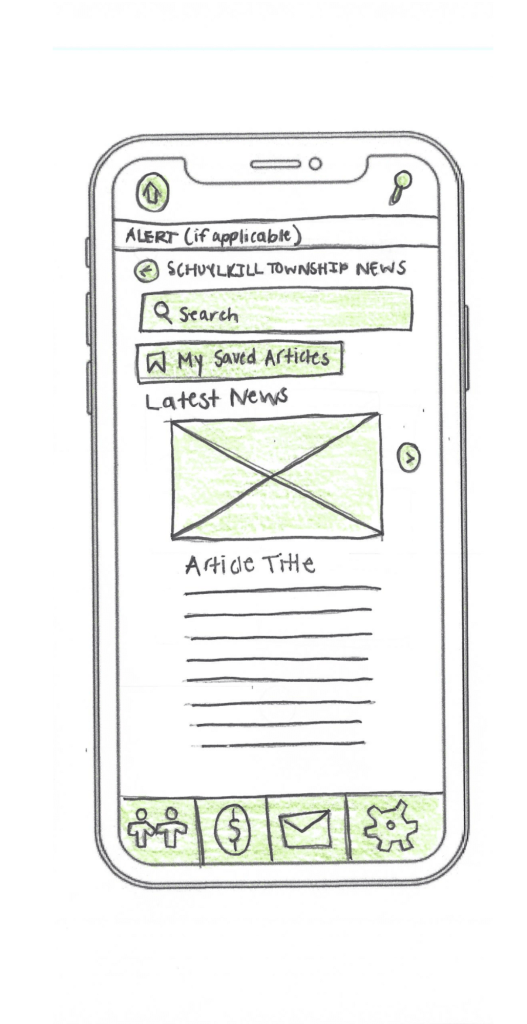
    An example of low-fidelity prototyping from my project.

    Medium-Fidelity Prototypes

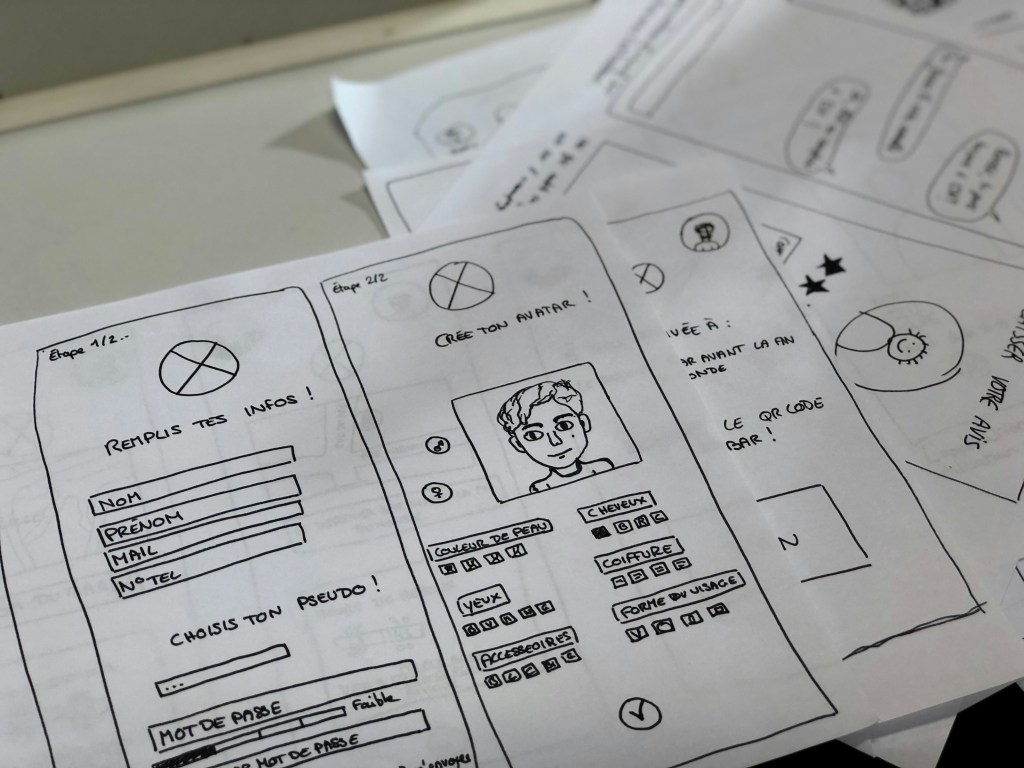
    Medium-fidelity prototypes offer more accurate layouts, include some user interface (UI) elements, and may have basic interactive components. They strike a balance between realism and flexibility.
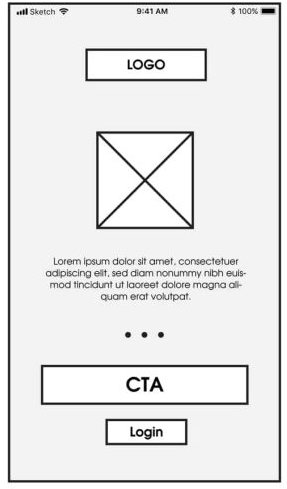
    An example of medium-fidelity prototyping from mentormate.

    High-Fidelity Prototypes

    High-fidelity prototypes, on the other hand, are polished and realistic. They replicate the final product as closely as possible with detailed visuals, real content, and full interactivity. They take longer to build, but the payoff is in their ability to simulate the real user experience.
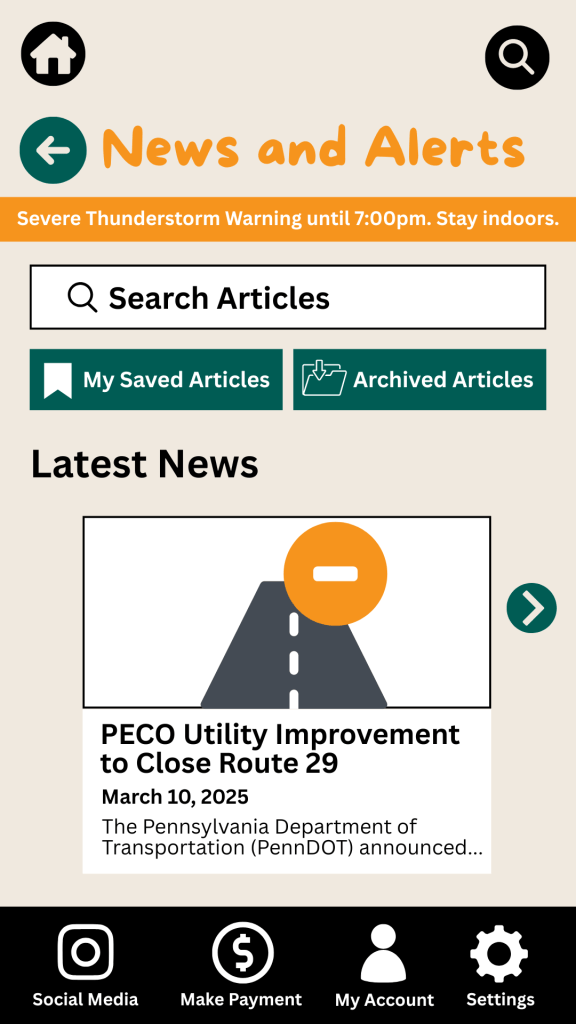
    An example of a high-fidelity prototype from my project.

    The level of fidelity you choose depends on where you are in the process and what kind of feedback you’re looking for. In the early stages, rough sketches suffice. But as you move closer to development, a more refined prototype is key to gathering accurate user feedback.

    Prototyping Tools for UX Designers

    When it comes to choosing the right prototyping tool, there’s no one-size-fits-all answer. As Fahim Bin Omar outlines in his article Best Prototyping Tools for UI/UX Designers – How to Choose The Right One?, your ideal tool depends on a few important factors, including your design goals, the complexity of the project, the level of fidelity you need, how well the tool supports collaboration and feedback, its compatibility with other software you use, and device support and accessibility.

    Popular Prototyping Tools to Consider

    There are many programs that UX/UI designers use to create interactive prototypes. Some of the best include:

    • Figma: A cloud-based favorite among teams for its real-time collaboration features and comprehensive prototyping tools.
    • Marvel App: Known for its user-friendly interface and ease of turning static designs into interactive prototypes.
    • Adobe XD: Great for those already in the Adobe ecosystem, offering seamless integration with other Creative Cloud tools.
    • Sketch: A powerful Mac-based design tool with an intuitive interface and a wide range of plugins.
    • Proto.io: Lets you create realistic, code-free prototypes right in your browser with a simple drag-and-drop interface.
    • Webflow: A unique option for those who want to build responsive web prototypes with real HTML, CSS, and JavaScript output.

    Whatever you choose, make sure it aligns with your needs. Remember: The user always comes first. The right tool should help you design for clarity, accessibility, and ease of use.

    My High-Fidelity Prototypes

    For this project, I used Adobe Creative Suite to design the visual elements of my prototype and then brought it to life interactively using the Marvel App. Since I already had a subscription to Adobe and was familiar with both tools, I was able to focus more on creating a seamless and user-centered experience.

    While I explored several platforms, Adobe and Marvel gave me the flexibility and control I needed to produce a highly usable and visually engaging prototype. View the video below as I walk through each prototype I created for the Schuylkill Hub app.

    Changes from Low- to High-Fidelity Prototypes

    Once I began user testing last week, it became clear that a few areas of my prototypes needed improvement. One of the most notable pieces of feedback was confusion between the “Contact” and “Township Services” sections. Users weren’t sure where to go for help.

    To fix this, I combined both into a single, clearly labeled section: Contact Township. This new layout provides an easy-to-navigate overview of township services along with direct contact options for each department, improving both clarity and accessibility.

    I also made several updates to the footer navigation based on additional user feedback:

    • Added “My Account” and “Settings” so users could access personal information and preferences quickly.
    • Included labels beneath icons to make navigation more intuitive.

    In the News & Alerts section, I implemented several new features:

    • A top bar for urgent alerts.
    • A personalized “Suggested for You” section.
    • An “Archived Articles” button for past content.

    To make the prototype feel authentic to the township, I included local events and headlines, and built out supporting features such as a search bar, an ‘About’ section, and a ‘My Account’ page.

    Click here to view each step of the process of creating the Schuylkill Hub app.

    Reflection

    If there’s one thing I’ve learned from this project, it’s that prototyping is where ideas truly start to take shape. From low-fidelity sketches to interactive high-fidelity designs, each version helped me refine my app’s user experience through iteration and feedback.

    In the early stages, my low-fidelity prototypes were just simple outlines that mapped out the app’s basic structure and flow. These were invaluable for quick brainstorming and helped me think through how users would navigate the app. Because they were easy to change, I could revise layouts based on feedback without feeling too attached to one idea.

    As I moved into medium- and high-fidelity prototypes, the process became more detailed and intentional. Visual hierarchy, color palette, typography, and real content began to shape a more complete picture of the app.

    Looking back, I now see prototyping as a form of communication — a way to translate abstract ideas into something tangible, testable, and ultimately user-centered. It’s not just about making things look good; it’s about making things work well for the people who use them.

    I’m walking away from this project with a much deeper appreciation for prototyping as an essential part of the UX design process. The experience has taught me to approach every project with curiosity, openness to feedback, and a commitment to designing with the user in mind.
  • User and Usability Testing in Action: When Feedback Meets Design

    User and Usability Testing in Action: When Feedback Meets Design

    An image of a sticky note reading “Run a Usability Test” from Unsplash

    What better way to get feedback on your design than from the people who’ll actually use it?

    When I first started designing paper prototypes for a township app, I thought I had considered everything. Clean design? Check. Clear navigation? Of course. Useful features? Absolutely. It wasn’t until I sat down – virtually – with my sister and mom that I realized how much more I had to learn. The way users interact with your product can be eye-opening, informative, and one of the most exciting parts of the design process.

    This post is a deep dive into my own experience conducting user and usability testing: what these terms mean, how to prepare for testing, and what I learned when I watched real people click through my proposed app.

    What are User and Usability Testing?

    At first glance, “user testing” and “usability testing” sound interchangeable, but they have distinct goals.

    User testing is a process where real users interact with a product while designers observe and analyze their behavior. It is about understanding people: their needs, expectations, and behaviors. It helps you figure out if your product concept makes sense to your audience. Usability testing, on the other hand, is a specific type of user testing. It evaluates how easily users can navigate your product and accomplish key tasks (Strba, 2024). This will help designers identify hidden opportunities and generate new ideas in a quick and easy fashion.

    Both forms of testing are essential. Together, they offer a full picture of what’s working, what’s not, and what could be better.

    Tips for Testing Paper Prototypes

    An image of testing and comparing paper prototypes from Interaction Design.

    When you ask someone to review your prototypes, you’re not just asking them to test your design – you’re inviting them into a conversation.

    To make that conversation effective, users need context. In “User Testing Your Paper Prototypes,” Andrew Smyk emphasizes that users must understand the tasks they’re expected to complete. That clarity helps eliminate unnecessary confusion and ensures that any struggles they encounter are due to the design and not a lack of explanation.

    One tip that stuck with me is to avoid vague labels and features. If something is labeled “Category 1” or “Button A,” users won’t know what it means. That confusion clouds the testing results.

    It’s also worth being mindful of user behavior beyond words. Long pauses, puzzled expressions, or hesitant mouse movements can reveal uncertainty even when users say, “Yeah, I think I get it.”

    And lastly, don’t wait until your product is polished to test it. The earlier you gather feedback, the more room you have to fix issues without derailing the whole design process.

    Writing Effective Task Scenarios

    If usability testing is about watching users complete tasks, then writing those tasks well is key to receiving meaningful feedback.

    In “Writing Good Task Scenarios for Usability Testing,” Teng states that scenarios should be written like real-life goals, not instructions. Task scenarios help participants focus on what they need to accomplish, not how to do it. It’s the difference between saying “Find the registration form for your child’s summer camp” versus “Click the registration button.” The former helps users act naturally and reveal how intuitive your design really is.

    I tried to follow these principles by using familiar language, staying concise, and giving each scenario a bit of personality so users could imagine themselves in the situation.

    Good task scenarios aren’t just technical – they’re human. They give users a reason to care and something to solve.

    My User Testing Experience

    My design of the home screen for the Schuylkill Township companion app.

    In preparation for my user testing experience, I used the Prototyping on Paper (POP) app by Marvel to make my designs interactive and share them with the users.

    To test my paper prototypes for a companion app for Schuylkill Township, I wanted participants who would find the content relevant. I chose two family members: my sister and my mom. They both represent two different age groups of residents who currently live or have lived in Schuylkill Township. Selecting family members could have drawbacks, such as bias in feedback, but I told them to provide honest, constructive suggestions for my designs.

    We conducted our sessions over Zoom. I asked a few warm-up questions to get a sense of how they typically use technology and then guided them through a series of four tasks using screen share. After each task completion, I asked for feedback. This gave me the opportunity to receive suggestions in real-time.

    The results? They gave me a lot to think about!

    User 1: My Sister

    A video of the full user testing experience with my sister.

    As a tech-savvy user, it was important to test the app with someone in my sister’s age category to ensure it resonated with a younger audience. View the video above to watch my sister navigate through each proposed task.

    User 2: My Mom

    A video of the full user testing experience with my mom.

    As someone who doesn’t use their phone or technology often, it was essential to test my app with someone like my mom to guarantee that other users who might struggle with technology could successfully and effectively use the app. View the video above to watch my mom navigate through each task.

    My Insights from Testing

    This was a beneficial experience highlighting both positive design elements and areas of improvement. One unexpected issue? The prototype images I uploaded into POP still had a phone case design around them. When viewed on a real phone, it looked like a phone inside a phone. This threw off both users, and I’ll definitely avoid that visual redundancy next time.

    Task 1: Search for, Register, and Pay for an Event

    Both participants easily located the “Events” button on the homepage, which was a great sign that the navigation is intuitive. My sister moved through the process quickly – she found the event listings, clicked “Buy Tickets,” completed the payment process, and returned to the home screen with no issues. Her one suggestion was to replace placeholder labels like “Category 1” and “Category 2” with actual event category names to provide better clarity when searching for an event.

    My mom also found the “Events” section without issue but got a bit confused when it came to registering. In the task scenario, I had used the word “register” instead of “book,” which led her to hesitate at the “Book Tickets” button. This was a valuable reminder that word choice matters in task descriptions. It’s important to align the language in the scenario with what’s reflected in the interface to avoid confusion.

    Task 2: Search for an Article and Download It

    My sister again moved through this task seamlessly. She located an article, downloaded it, and suggested a helpful feature idea: adding an “Archives” section alongside “My Saved Articles” so users can revisit older content more easily.

    My mom completed the task as well, but paused when she reached the icons for downloading and bookmarking. She wasn’t familiar with what the download or bookmark symbols meant and asked for clarification. This feedback made me realize that relying solely on icons may not be accessible to all users. Moving forward, I may consider adding text labels next to the icons or using tooltips to provide context.

    Task 3: Sign Up for an Account and Report a Pothole

    This task was structured as “Sign Up for an Account and Report a Pothole.” This may have unintentionally confused my sister and mom because users are prompted to sign up/login after clicking the “Report an Issue” button, not before. They both first looked for a “Sign Up” button before clicking “Report an Issue.” In the future, I’ll adjust the task description, or possibly the app flow itself, to better match user expectations.

    That said, both participants successfully navigated to the “Report an Issue” section. My sister completed the steps quickly and suggested adding confirmation text after submission to let users know their request was received and that updates would be provided. My mom took a little longer at the dropdown menu used to categorize the issue, but once she oriented herself, she was able to complete the task as well. The overall takeaway? The flow works, but clarity and reassurance can make the experience smoother.

    Task 4: Contact the Police Department

    This was the task where both users stumbled, and as a result, it became one of the most valuable tests. I had intended for users to click the envelope icon in the footer navigation, which represents the “Contact Us” section. However, both users initially went a different route.

    My sister clicked on “Township Services,” expecting to find police contact information there. When it wasn’t what she expected, she found her way to the envelope icon and completed the task. My mom followed a similar pattern: first trying “Township Services,” then checking “Report an Issue,” and then eventually locating the “Contact Us” section.

    This consistent behavior pointed to a larger design issue: the “Contact Us” option isn’t as visible or intuitive as it needs to be. A clearer label or more prominent placement could make all the difference. I’m considering merging “Township Services” and “Contact Us” into a single section, or at least renaming them to better reflect the types of content each one holds. Small changes like these can significantly improve the user experience.

    Final Thoughts

    Design is a conversation, not a monologue. No matter how good your product looks or how clearly you think you’ve labeled everything, you won’t really know how it works until someone else tries it.

    User and usability testing opened my eyes to how people interpret, navigate, and occasionally struggle with a design. It reminded me that great design isn’t just about what we create – it’s about how people experience it.

    If you’re working on a prototype, test it early, test it often, and most importantly – listen. Your users will give you valuable feedback to improve your app and enhance each user’s experience.

  • Back to Basics: Exploring Paper Prototyping for Mobile Design

    Back to Basics: Exploring Paper Prototyping for Mobile Design

    An image of paper prototyping from unsplash.com.

    In a world dominated by cutting-edge tools, sleek interfaces, and ever-evolving technology, it might sound odd to say this – but sometimes, the best ideas start with nothing more than a pencil and a piece of paper. Before Figma and Adobe XD, before clickable mockups and developer handoff tools, designers relied on sketching to bring their visions to life. And even now, when the digital world changes at the speed of light, there’s something refreshing, even powerful, about going back to the basics.

    That’s where paper prototyping comes in. It’s low-tech, low-cost, and surprisingly high-impact. Whether you’re a seasoned designer or someone exploring UX for the first time, paper prototyping can help you unlock creative ideas and map out user experiences – without ever touching a screen.


    What is Paper Prototyping?

    An image of a designer creating prototypes from pixabay.com.

    “Paper Prototyping: The 10-Minute Practical Guide” offers a great introduction to the concept. At its core, paper prototyping is the process of sketching out user interfaces and workflows by hand, often using simple materials like printer paper, sticky notes, and markers. Each sketch represents a screen or interaction in your digital project, giving you a clear, tangible way to map out how a user might move through your app or website.

    These prototypes are considered low fidelity, meaning they aren’t functional or polished. But that’s the beauty of it – they’re fast, flexible, and easy to change. A single screen might take just five to ten minutes to draw, making it easy to explore different layouts or user flows without committing to any one direction too early. They’re also cost-effective, spark creativity, and come with a minimal learning curve, making them accessible to anyone, not just seasoned designers.

    Ultimately, paper prototypes help you plan before you build. And the more solid your plan, the faster and more effectively you can move on to wireframes, digital mockups, and functional prototypes.


    How to Prototype on Paper

    Getting started is simple. All you need are a few household materials – paper, pens, markers, sticky notes, scissors – and your imagination.

    Begin by sketching your key screens. These could include your home page, menu, or contact form. Each piece of paper becomes a screen, and you can arrange them in sequence to visualize the user journey. Think about how someone would move from screen to screen, and simulate that flow by swapping one sketch for the next, just as a user would tap through an app.

    Ben Coleman’s “How to Make Paper Prototypes” suggests thinking intentionally about a few key areas:

    Devices

    Before sketching, identify what device you’re designing for. For my project, I focused on smartphones, which meant my sketches had a portrait orientation and dimensions that mimicked a mobile screen. It’s important to design within the constraints of your chosen device to ensure your prototypes feel realistic.

    Elements

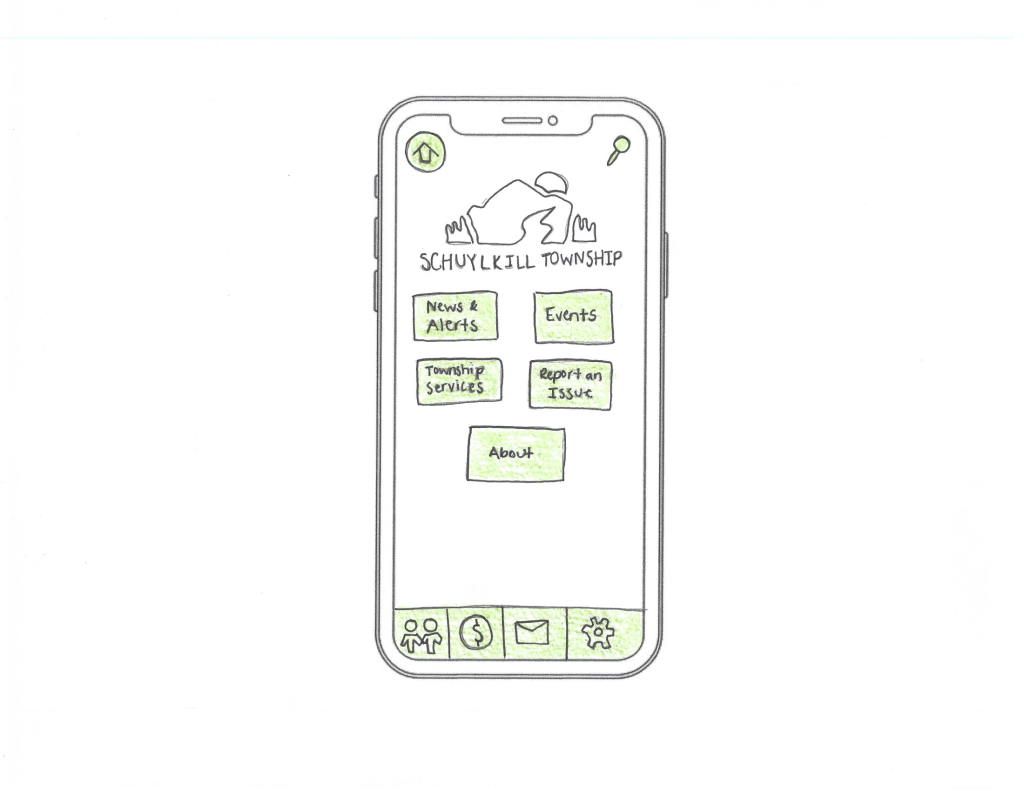
    Think about how users interact with your screen elements – buttons, links, search bars, etc. In my prototypes, I highlighted all interactive elements in green colored pencil. This made it easy to identify what was tappable and where users might go next, even if the prototype wasn’t interactive in the digital sense.

    Messages and Pop-up Boxes

    Sometimes, your app might show a confirmation message or a pop-up. Sticky notes work great here and can be easily added or removed based on user actions. For example, when simulating a report submission, you could use a sticky note that reads “Thank you! Your issue has been submitted,” which you could place over the screen to represent the interaction.


    Mobile Navigation Techniques

    An example of mobile navigation from dribbble.com.

    When designing for mobile, navigation is everything. It’s not just about helping users move from one page to another; it’s about making that movement feel intuitive. According to “Mobile Navigation: Patterns and Examples,” great navigation reduces friction and helps users find what they need without feeling lost.

    Here are some common mobile navigation approaches:

    • Top-Level Navigation: This includes hamburger menus (those three horizontal lines hiding a larger menu), floating action buttons, or tab menus at the top or bottom of the screen. Tabs are great for organizing equally important sections of your app. Top tabs are typically used for swiping between sections, while bottom tabs are often fixed and include icons for quick access.
    • Card-Based Navigation: Cards display main content areas right on the home screen. They’re touch-friendly and help prioritize information visually.
    • Sub-navigation: This includes dropdowns or sequential menus. When a user selects a main category, they see a submenu in its place. Good sub-navigation includes clearly labeled buttons, consistent iconography, and an easily accessible “back” option. Legible fonts and thoughtful spacing also make a big difference in usability.

    All of these patterns aim to strike the right balance between simplicity and functionality, getting users where they want to go without overwhelming them.


    My Project: Designing for Schuylkill Township

    My paper prototype for the home screen of Schuylkill Township’s app.

    For the past few weeks, I’ve been developing a companion mobile app for Schuylkill Township’s website. The goal? Make township information and services easier to access for residents on the go.

    I began by creating a site map to define the app’s structure, which I updated weekly based on feedback and user needs. From there, I mapped user flows – how a person might go from opening the app to reporting a streetlight outage, checking upcoming events, or finding township contact info.

    Paper prototyping was my next step. As I started sketching, I considered how users would navigate through the app and chose the following strategies:

    • At the top of every screen, I included a navigation bar with two options: Home and Search. These appear consistently to help users reset or find content at any time.
    • The main card-based navigation includes five core buttons: News & Alerts, Events, Township Services, Report an Issue, and About. These act as the backbone of the app, giving users direct access to essential information.
    • A footer navigation offers quick access to social media, online payments, contact details, and settings.

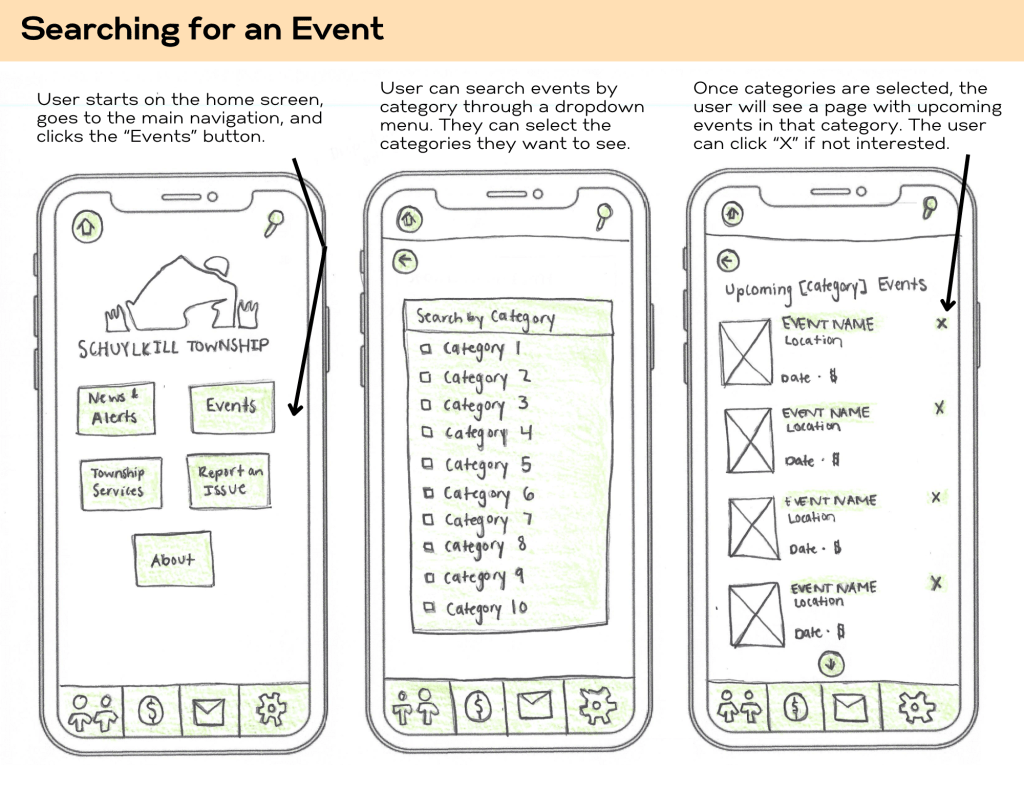
    To bring it all together, I identified four common tasks a user might complete in the app, and then created full sets of screens to show how each task unfolds – from start to finish – using nothing but pencil, paper, and a little green colored pencil.

    Here’s an example of three screens for a user wanting to search for an upcoming event:

    Prototypes representing the first three steps of searching for an event.

    You can view my full set of paper prototypes here.


    Final Thoughts

    Paper prototyping may seem simple, but its power lies in that simplicity. It allows you to think deeply about user experience without the distractions of pixel-perfect design or technical constraints. By mapping out screens and interactions on paper, you’re building the foundation for a thoughtful, user-first app experience.

    So, if you’ve got an idea brewing, don’t wait for the perfect tool or software update. Grab a pencil, some paper, and just start sketching. It’s easy, fun, and one of the most effective ways to bring your ideas to life.