There’s something exciting about being deep into a passion project when ideas start to click and your creativity shifts into high gear. If you’re like me, you reach a point where you’re ready to bring your vision to life through actual deliverables. That’s where things get interesting…and sometimes a little intimidating, especially when using a new tool for the first time.
This week in my content creation project Preserve the Peaks, focused on preservation of Rocky Mountain National Park, I dove into something completely new: Genially, a platform that lets you create interactive digital content. My goal? Build a poster and a game that didn’t just tell a story, but invited people to participate in one.
Here’s what I learned along the way, what Genially has to offer, and a few tips if you’re ready to try something new in your own project.
Getting Started with Genially
Genially is like the digital playground you didn’t know you needed. You can make interactive infographics, posters, presentations, games, quizzes, and more without needing to code or design from scratch.
Before I jumped in, I took some time to learn the ropes. And I highly recommend you do the same. It’s tempting to dive right into your project, but learning the platform first will save you time and stress later.
Genially’s tutorials are super helpful. They walk you through how to choose templates, add interactive features, animate your content, and share your finished product. You can start here with Genially’s first steps guide.
Think of it like hiking. You wouldn’t hit the trail without checking the map first. Take time to learn the features so you can explore without getting lost.
Tips for Creating with Genially
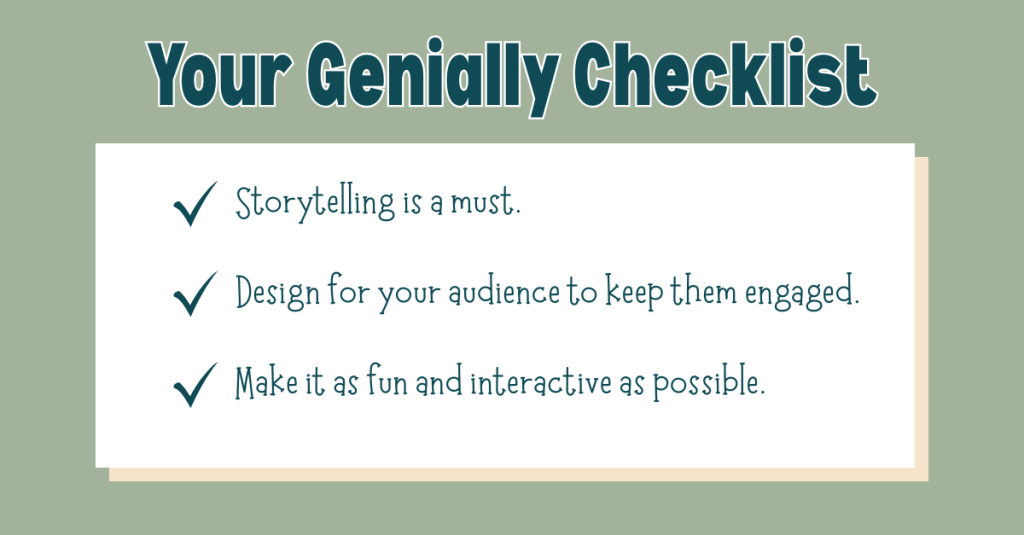
After you explored the program, here are a few tips that really helped me when creating projects this week:
1. Storytelling Is Everything
Whether you’re designing a poster or a quiz, remember that you’re not just sharing information, you’re telling a story. Use animation, visuals, and an engaging layout to guide your audience through an experience, not just a page.
2. Keep Your Audience Engaged
Genially lets you create buttons, clickable elements, pop-ups, and hover effects. These features make static info feel dynamic and personal. Instead of just reading something, your audience is participating in it.
3. Make It Fun
Whether it’s a game or an interactive infographic, your audience should enjoy exploring your project. Keep things clear, concise, and surprising. Give them something to click on. Make them wonder what happens next.
These tips are inspired by Lopez’s suggested best practices in Interactive, animated, and disruptive: How to create digital content with Genially. A great source I referenced in my project was the National Park Service, especially their page on visitor guidelines and planning visits, which helped me stay accurate and impactful.
How My Project Evolved
When I first started, I planned to create an interactive poster encouraging responsible behavior in Rocky Mountain National Park. I wanted it to be informative, visual, and straightforward.
But after exploring Genially’s features, I realized: Why not make it a game? A playful, click-through experience could make the content even more engaging.
Interactive Game
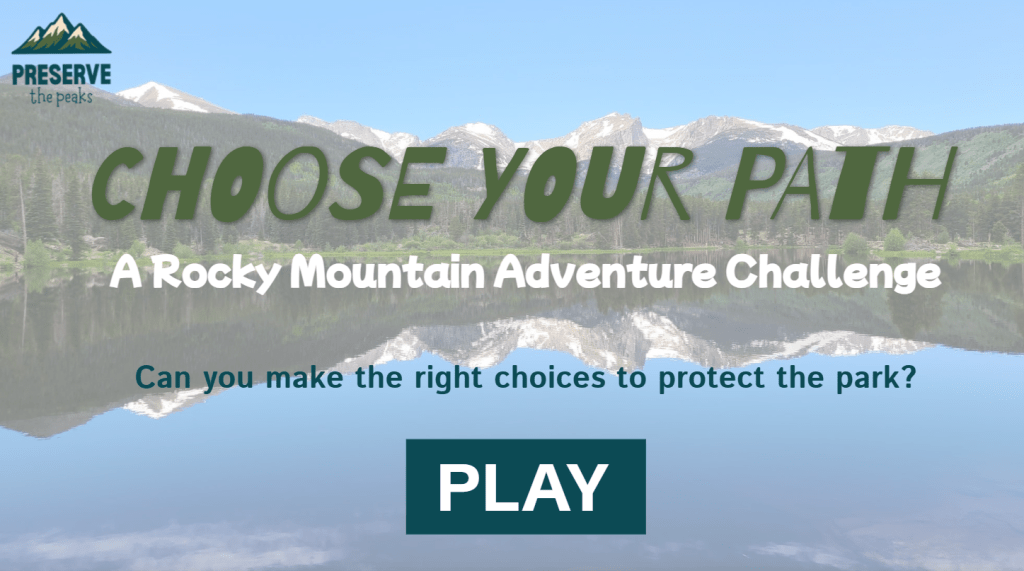
So, I created Choose Your Path, a gamified experience where users select an avatar and navigate through real-life scenarios in the park. Should you stay on the trail? Pack out your trash? Approach that elk for a selfie? Each level presents choices and consequences, with interactive pop-ups and animations that reinforce park values in a fun, visual way.
Interactive Map of the Park
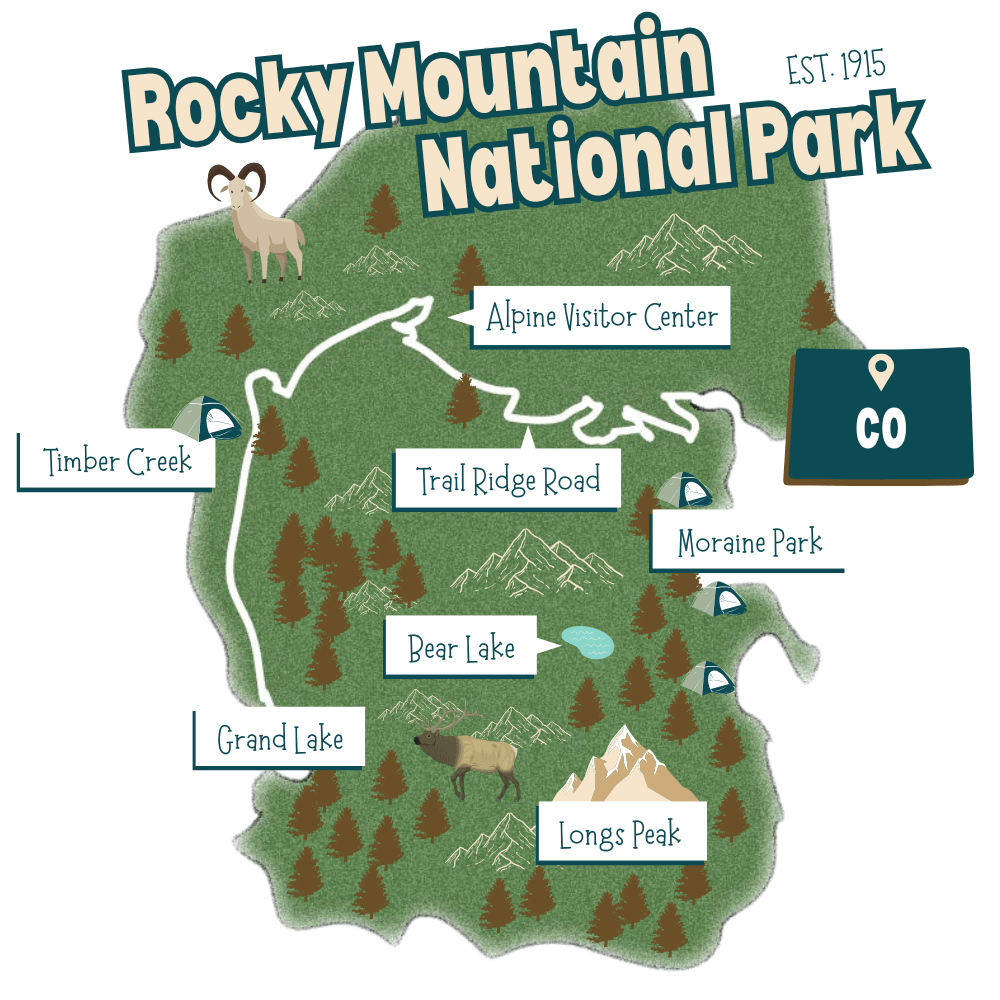
I also built a clickable map of Rocky Mountain National Park. Users can click on hotspots like Bear Lake, Trail Ridge Road, or Grand Lake to learn more about each area. This allowed me to teach geography, ecology, and travel tips in an interactive format.
To view my outlines, wireframes, and Genially projects, click here.
Lessons Learned
What did I learn after creating projects in Genially for the first time?
1.) Leave Time to Explore
Don’t rush through learning the program. Block out time to experiment, test features, and maybe even start over. That exploration leads to better design and fewer headaches.
2.) Let Your Ideas Change
Originally I thought I’d stick with one format. But after experimenting with Genially, I realized I could pivot and create something more interactive. That flexibility made my project stronger.
3.) Design with Your Audience in Mind
Make sure what you’re designing is easy to understand, fun to use, and visually appealing. Test it. Click through it yourself. Ask someone else to try it. If they enjoy the experience, you’re on the right track.
Keep Creating!
Every creative tool has a learning curve. But when you get the hang of it, it can become a powerful way to share your message.
Genially gave me a way to not just talk about protecting Rocky Mountain National Park, but to show it and let people interact with it. Whether you’re creating a guide, an educational game, or a simple visual story, this platform has the tools to bring your project to life.
So go ahead. Try something new. Get your hands dirty. Click every button. Break things and build again.
Because that’s where the real magic happens.
 Christian Schaaf's Blog + Portfolio