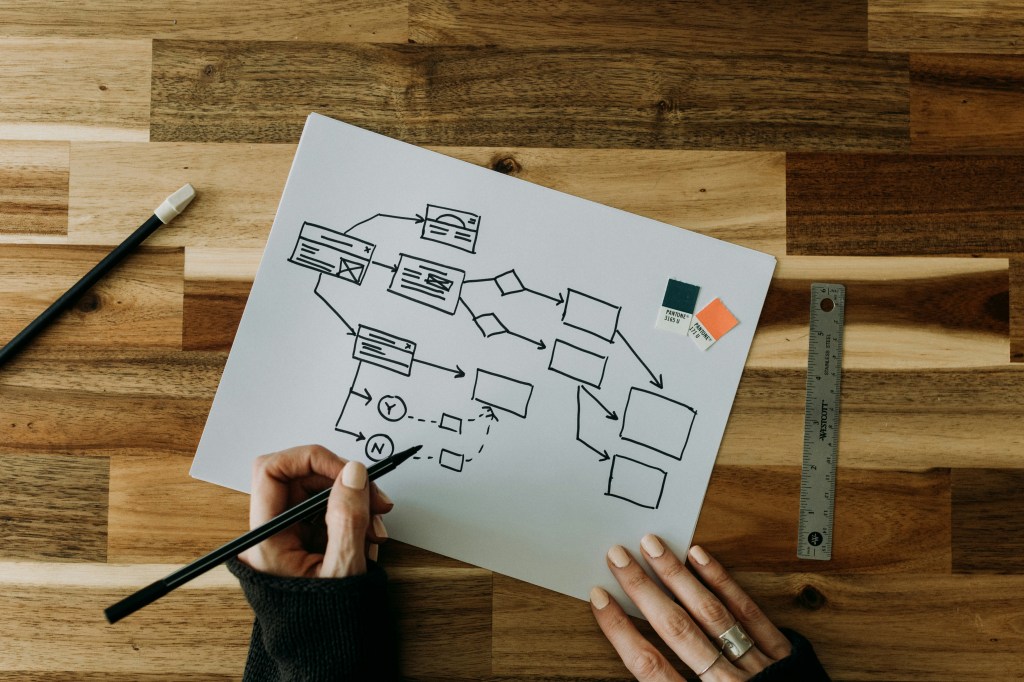
An example of a visual roadmap from Kelly Sikkema on unsplash.com.
Have you ever opened an app with a specific goal in mind, only to find yourself lost in a maze of menus and options? Imagine needing to quickly pay a bill through your bank’s mobile app. You expect a straightforward process, but instead, you’re met with unclear labels, hidden menus, and redundant steps. Frustrated, you either spend more time than anticipated or abandon the task altogether. Such experiences are not uncommon and highlight the critical importance of intuitive design in digital products.
These moments of frustration underscore the significance of user flowcharts in the design process. By thoughtfully designing these flows, we can create seamless experiences that guide users effortlessly toward their goals.
What Is a User Flowchart?
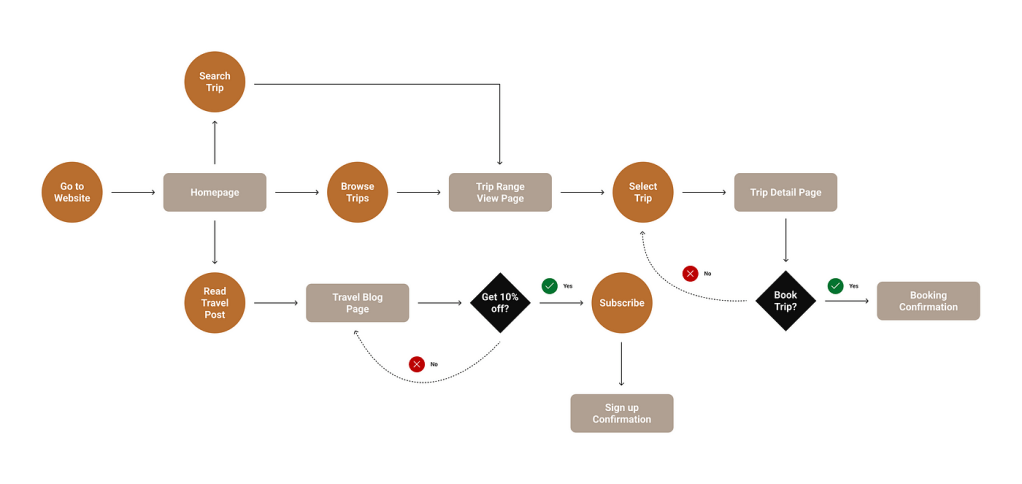
An example of a user flowchart from uxdesign.com.
A user flowchart is a diagram that illustrates the path a user follows to accomplish a specific task within a system. It outlines each step and decision point, providing a clear picture of the user’s journey. This tool is invaluable for designers aiming to create intuitive and efficient user experiences.
Steps to Create an Effective User Flowchart
Drawing inspiration from Camren Browne’s “How to Create a User Flow: A Step-by-Step Guide,” these are key steps to consider when creating a user flowchart:
Understand Your User
To design an effective user flow, you must first deeply understand your users. Ask questions like:
- What are the users’ needs and goals?
- What challenges do they face?
- Which features are most important to them?
- What initial questions will they have about the product?
- What is the most important information that you can provide so the user can easily interact with your product?
By answering these questions, you can identify key pathways that guide the user through your site or app in the most direct manner. Pinpointing these pathways will create user flow seamlessly.
Outline the User Flow
Browne suggests breaking the flowchart into three main stages:
- Entry Point: An entry point is where the user accesses the product initially. Websites often have multiple entry points while apps usually have limited entry points.
- Steps to Completion: Steps to completion encompasses a majority of the flow chart. These steps include login or signup screens, a home screen, and any other screen that the user passes through to complete their intended task. The goal is to keep it simple (Browne, 2022). It is important to only outline the steps needed for the user to achieve their goal.
- Final Step: This step signifies the completion of the user’s task.
Keeping this structure simple ensures clarity and ease of navigation.
Define Flowchart Elements
When creating flowcharts, designers should use different shapes and colors to represent various interface elements (Browne, 2022). Each shape illustrates an interaction and provides the reader with more information about what each step entails. Some of the most common shapes include:
- Rectangles: Rectangles usually represent a page or display screen.
- Circles: Circles are usually used for displaying an action.
- Diamonds: Coined as a “decision diamond,” this shape asks a question where the user needs to make a decision.
- Arrows: Lines with arrows indicate the direction of the user’s journey.
Refine the Outline
The strategy for designing an interface is similar to designing a UX flowchart. Browne (2022) suggests to make labels meaningful. Labels will accurately and efficiently describe exactly what the user is doing in each step of the user flow. Other tips include avoiding the use of capital letters to maintain readability and to carefully select colors for each step of the user flowchart. Color should be used as a coding system rather than for styling. Including a key or legend helps in understanding the symbols used in a user flowchart (Browne, 2022).
Applying User Flowcharts: A Practical Example
Recently, I worked on developing a companion app for Schuylkill Township’s website, aiming to centralize township information and services. After creating a site map for the website and companion app, I further explored the companion app, identifying the purpose, functions, target audience, and designing the app’s user flowcharts.
Schuylkill Hub Overview
The Schuylkill Township Logo
Purpose
The purpose of the Schuylkill Hub companion app is to provide residents with easy access to township news, events, and services, fostering community engagement. The goal is to create a space where the Schuylkill Township community can connect and find easily accessible information on the go.
Functions
The functions of the Schuylkill Hub app include:
- Make online payments.
- View the township’s most recent and past news stories.
- Check and RSVP to upcoming events.
- Request township services.
- Report issues.
- Access a directory of township contacts.
- Connect with other residents via social media.
Target Audience
The target audience for this app is residents of Schuylkill Township, particularly those frequently visiting the township’s website. This app will offer them easy access to important township-related information. The demographic data of Schuylkill Township residents are as follows as outlined by the Census Reporter:
- About 8,800 residents.
- The median age is 42, with the most populated age groups of 50-59 (19%) and 10-19 (17%).
- 51% Female and 49% Male.
- 90% White.
This app will meet the needs of its users because Schuylkill Township residents will be more informed about township events, feel more connected with their community and township leadership, access township-related information in an easily accessible and user-friendly way, make payments efficiently, and receive help when needed.
User Example Scenarios
Using the demographic information above, I crafted four user scenarios of potential Schuylkill Township residents that could use this app for different purposes.
To view all four scenarios with their respective user flowcharts, click here. Below is an example of one user scenario.
Emma’s Story and Scenario

An image of a student in a library from unsplash.com.
User Story
As a high school AP Government student in Schuylkill Township, I am about to vote in my first election and want to find local political events to get involved in. I also want to contact local elected officials.
User Scenario
Emma, 18, is a high school senior who recently enrolled in AP Government and Politics. This class has piqued her interest in politics, and she wants to learn more and become involved in her local political landscape. Yearning to gain knowledge before participating in her first election, she wants to get information about Schuylkill Township’s upcoming political events and also reach out to elected officials to establish connections. She wants to make a positive impact in her community.
Use Cases
Option 1
- Emma opens the Schuylkill Hub app.
- The welcome screen displays options like “Events” and “Directory.”
- She selects “Directory.”
- The Directory Tab appears with options.
- Within the directory, she chooses “Elected Officials.”
- Emma browses the list and finds contact information.
- She uses the provided details to reach out to an official.
- Satisfied, Emma closes the app.
Option 2
- Emma opens the Schuylkill Hub app.
- The welcome screen displays options like “Events” and “Directory.”
- Emma selects the “Events” tab from the welcome screen.
- She filters events by category and chooses “Politics.”
- Emma browses upcoming political events.
- She selects an event.
- She views the event details.
- She registers for an event of interest.
- Emma closes the app, having achieved her goal.
Option 3
- Emma opens the Schuylkill Hub app.
- The welcome screen displays options.
- Emma selects the “Events” tab.
- She does not filter events and looks through the events calendar manually.
- Emma clicks through monthly events.
- She selects an event.
- She views the event details.
- She registers for an event of interest.
- Emma closes the app, achieving her goal.
This structured approach ensures that Emma’s experience is straightforward and aligns with her objectives.
User Flowchart
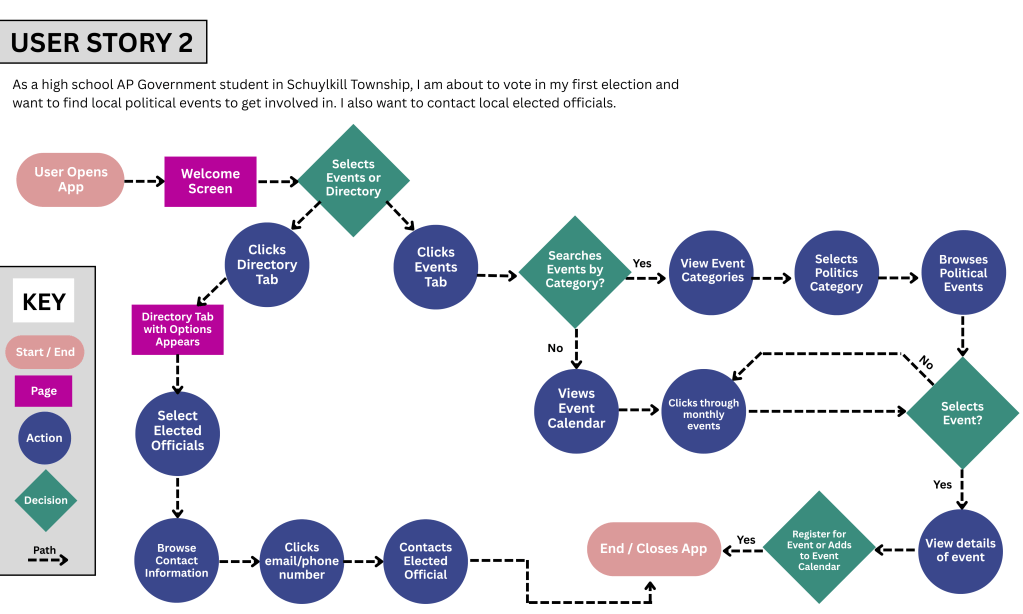
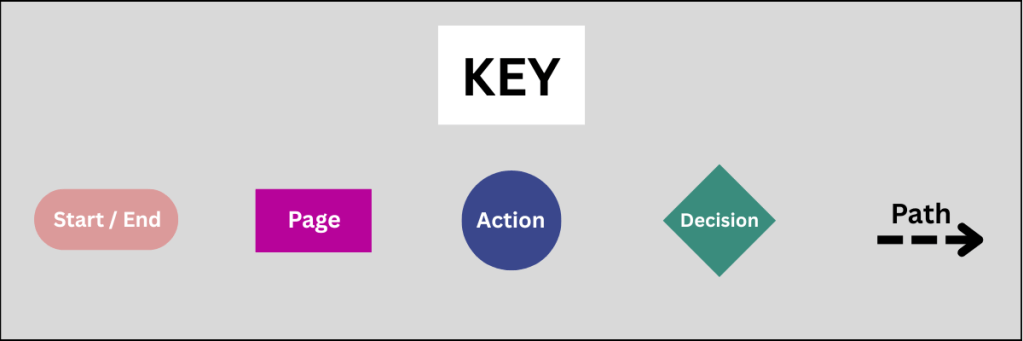
The above flowchart depicts Emma’s journey to achieving her desired goals of attending upcoming political events and contacting local elected officials. Following Browne’s suggestions, I used these elements throughout my flowchart.
- Rounded Rectangle: Start / End
- Rectangle: Page
- Circle: Action
- Diamond: Decision
- Dotted line with arrow to show direction.
Final Thoughts
Creating user flowcharts is more than just plotting paths on a diagram; it’s about stepping into the user’s shoes and understanding their journey. By focusing on the user’s perspective, designers can craft experiences that are not only functional but also engaging and intuitive.
Reflecting on this process, I realized the importance of empathy in design. When we prioritize the user’s needs and anticipate their actions, we create pathways that feel natural and effortless. This not only enhances user satisfaction but also fosters trust and loyalty. Designing with clear user flows ensures that our digital products offer meaningful and seamless experiences.
 Christian Schaaf's Blog + Portfolio
Leave a comment